Get Started with Genymotion SaaS


Genymotion SaaS is our solution to run Genymotion in the Cloud, on our own servers.
Requirements
For best result and compatibility, we recommend:
- Google Chrome
- Mozilla Firefox
There are known compatibility issues with Safari. Mac users should use Google Chrome instead.
Network Security
To communicate with our servers, make sure the following rules are allowed in your network firewall:
- Outgoing TCP port 443 on cloud.geny.io
- Outgoing TCP port 443 on api.geny.io
- Outgoing TCP/UDP port 443 on turn.genymotion.com
- Connection TCP∕UDP port 443 on ws.geny.io
- Connection to websockets (wss)
If you, or your company, use a proxy, make sure HTTP CONNECT on port 443 is allowed. If it is a SOCKS v5 proxy, make sure UDP ASSOCIATE is allowed too.
First steps
You can access Genymotion SaaS portal at https://cloud.geny.io.
To start using Genymotion SaaS, you first need a Genymotion SaaS account. To do so, please follow the steps described below.
Create an account
Even if you are already using Genymotion Device image (PaaS) or Genymotion Desktop, you still have to create an account with your existing email address.
Temporary email (also known as disposable) providers are not allowed for registration.
Fill up the form at https://cloud.geny.io/signup to create a Cloud account for Genymotion SaaS, or use Single Sign-On (SSO) option if you have a Gmail or Github account:
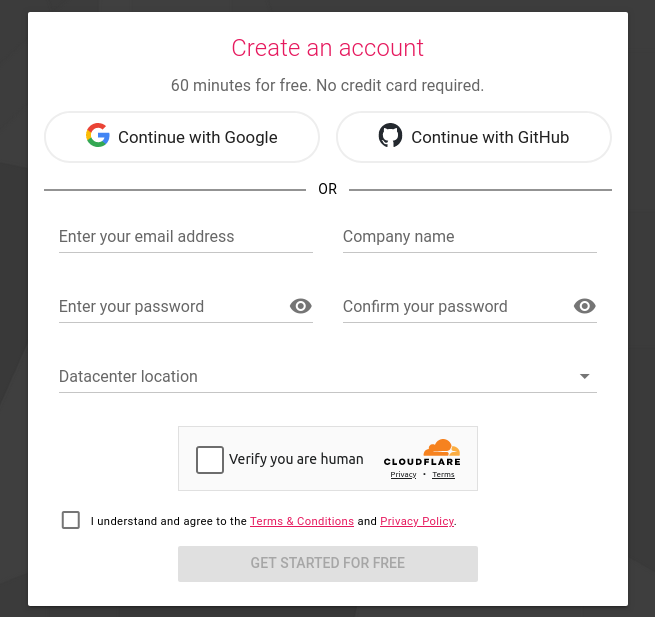
The datacenter location defines where you want your virtual devices hosts to be. Make sure to pick the nearest location.
You can also change the datacenter location after registration; in the top navigation bar or in the Administration interface.
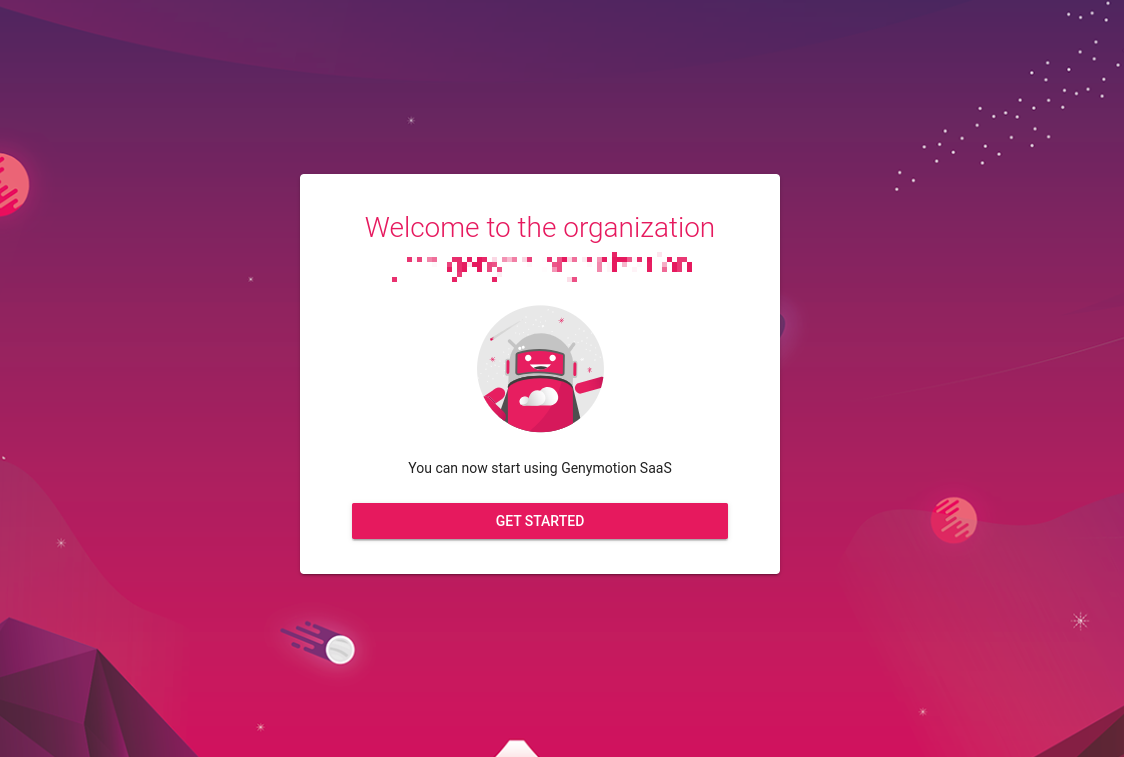
If you use Single Sign-On, you will be redirected to the account creation confirmation page:
If you do not use Single Sign-On, a verification email will be sent to the email address you provided in order to activate your Genymotion SaaS account:
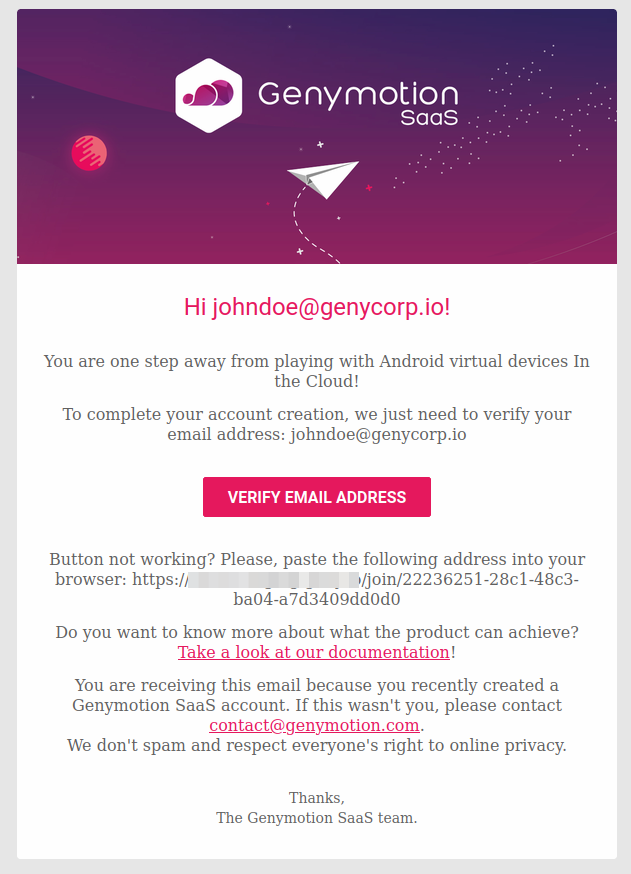
Click on the VERIFY EMAIL ADDRESS button to activate your account. You will be redirected to the account confirmation page:
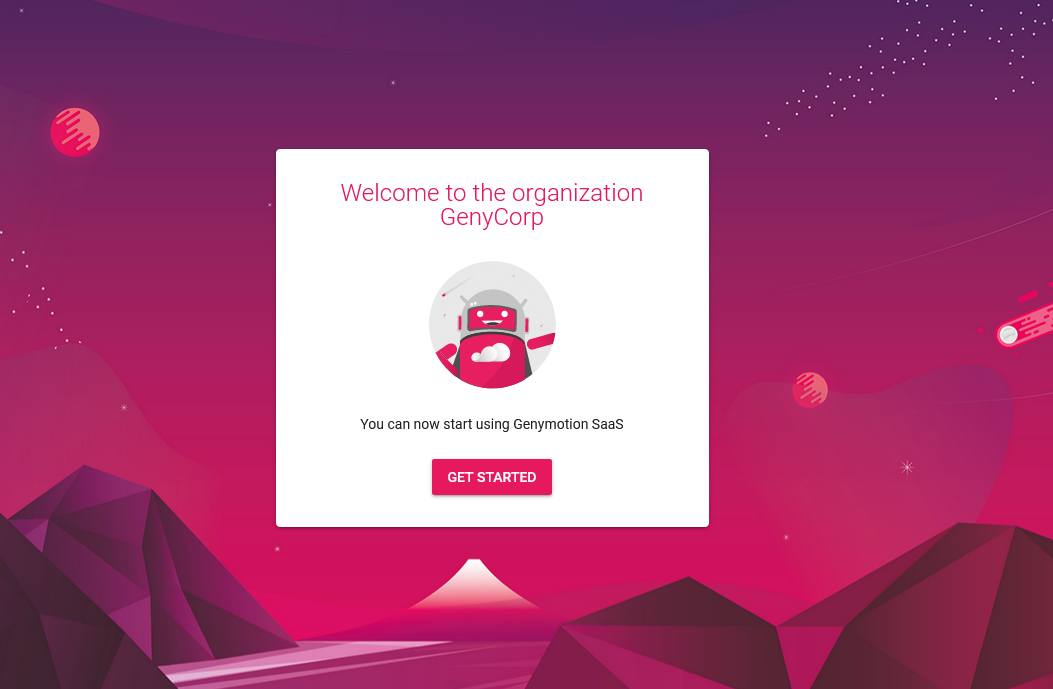
Click GET STARTED.
Finally, you need to read and accept the terms and conditions to start using Genymotion SaaS:
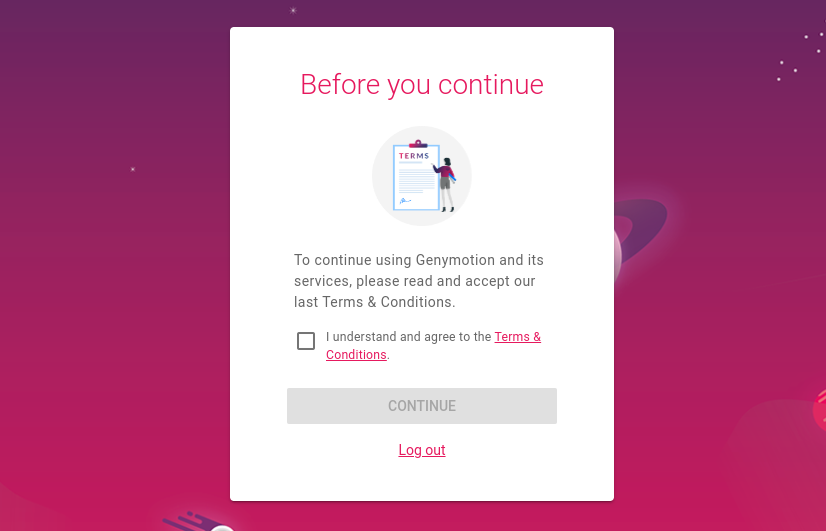
Now, you are all set to start a plan!
Log in
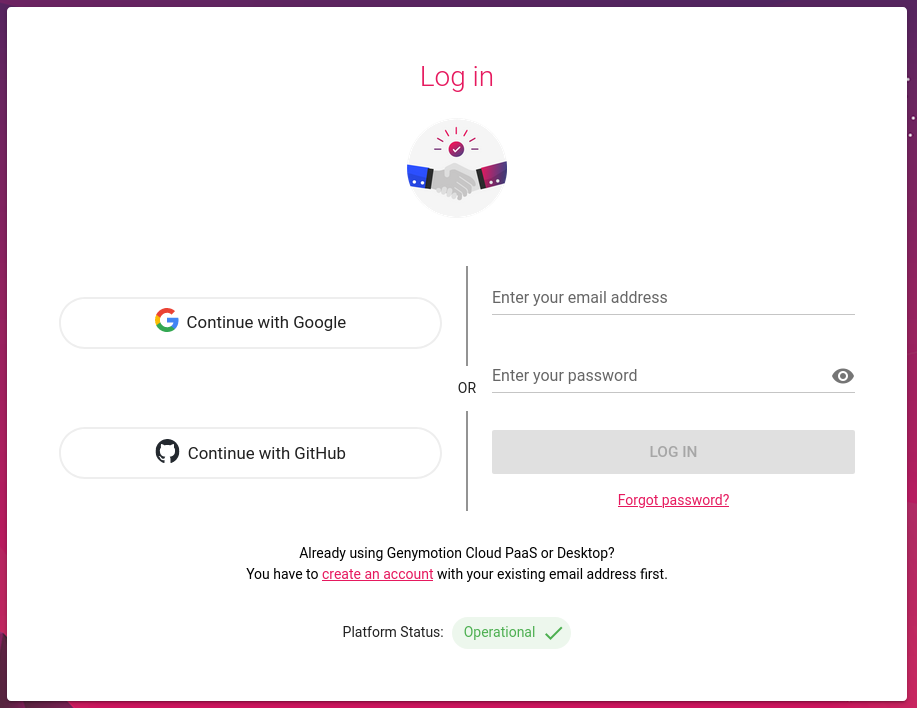
You can log in to Genymotion SaaS at https://cloud.geny.io/signin with your credentials or using Single Sign-On (SSO):
Note
The forgot password page will allow you to change your password, if you created an account with an email.
If you created your account with SSO, you can use this feature to set a password to your account: you will then be able to either log in with SSO or with your Gmail or Github account email and the password you set.
If you have been invited by a manager and wish to use SSO, you must use the same account as the one in the invitation.
Start a plan
A free 60 minutes trial is available on request. Learn more
Genymotion SaaS offers multiple subscription plans. To subscribe to a plan, follow these steps:
- Log in at https://cloud.geny.io/signin
- From Genymotion SaaS main window, open Administration Panel > Billing, or click the Start plan button from the home page.
- Fill in the Billing address and Credit Card information fields with the appropriate information.
- Subscribe to one of the plans. For more details about available plans, please refer to Pricing.
- Check the displayed information and click on START PLAN to confirm.
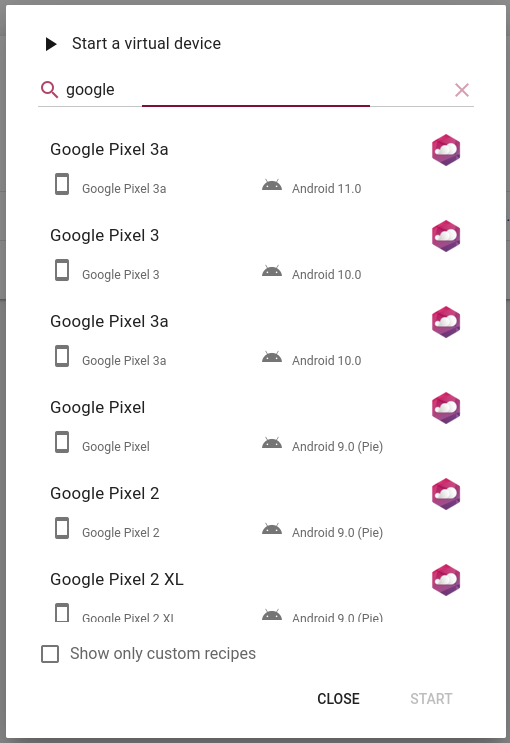
Quick-Start a Virtual Device
- From the Virtual devices dashboard, click

- Search and select the recipe you wish to use and click START