Capture
The Capture widget allows you to take a screenshot or screencast of the virtual device display.
To open the Capture widget, click in the toolbar:
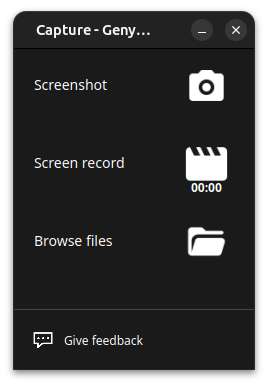
Then, select an action:
- Screenshot : take a screenshot.
- Screen record : record a screencast. Click again to stop.
- Browse files : browse the recorded screenshots and/or screencasts folder.
The default folder can be changed in Genymotion > Settings > Device.
Click in the bottom toolbar to take a screenshot and save it on your computer.
To make a screen record, click to start recording, and click again to stop and save the screen record to your computer.
Click in the bottom toolbar to take a screenshot and save it on your computer.
To make a screen record, click to start recording, and click again to stop and save the screen record to your computer.