Deploy Applications
To deploy an application to a virtual device, you first need to launch a new device from an official or custom recipe. Then, use either one of the methods below to deploy your application.
With an APK file
Drag and drop
Access the virtual device display, then drag and drop the application APK into it:
Via the Install Apps widget
Click to open the Install Apps widget:
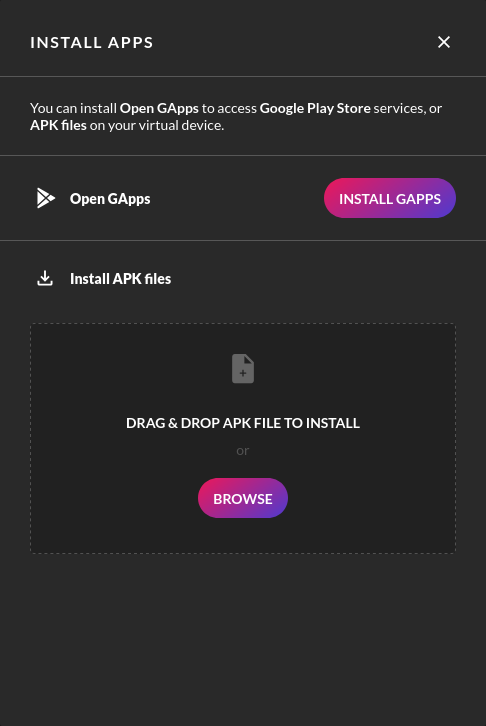
Then, drag'n drop the APK file to install, in the "Install APK files" section, or click BROWSE and select the APK file to install.
You can only install .apk files with this widget.
Via the File upload widget
Click to open the File Upload widget:
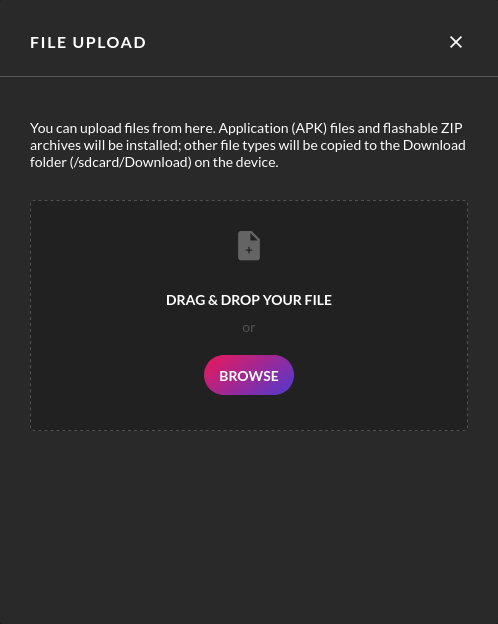
Then, dragn'drop the APK file, or click BROWSE and select a file, to upload it into the virtual device.
.apk files will be automatically deployed.
By commandline (ADB)
Connect ADB to your virtual device with gmsaas and run adb install to sideload your APK file:
adb install <application.apk>
Make sure to save your device as a custom recipe, or update the recipe, to keep changes.
From Google Play Store
Google Play Store is not pre-installed; you need to flash the Open GApps package to get it first. See Installing Google Play Store for instructions.
If an application is not available or cannot be installed from Google Play Store (Your device isn't compatible with this version), please refer to the FAQ for possible solutions.
Applications for ARM
x86/x86_64 images are deprecated and will be removed after March 30, 2026.
Most modern applications, especially games, are only available for ARM64: they will not install or run if you use an x86_64 image.
You need to use an official recipe, or create a custom recipe, with an arm64 image:
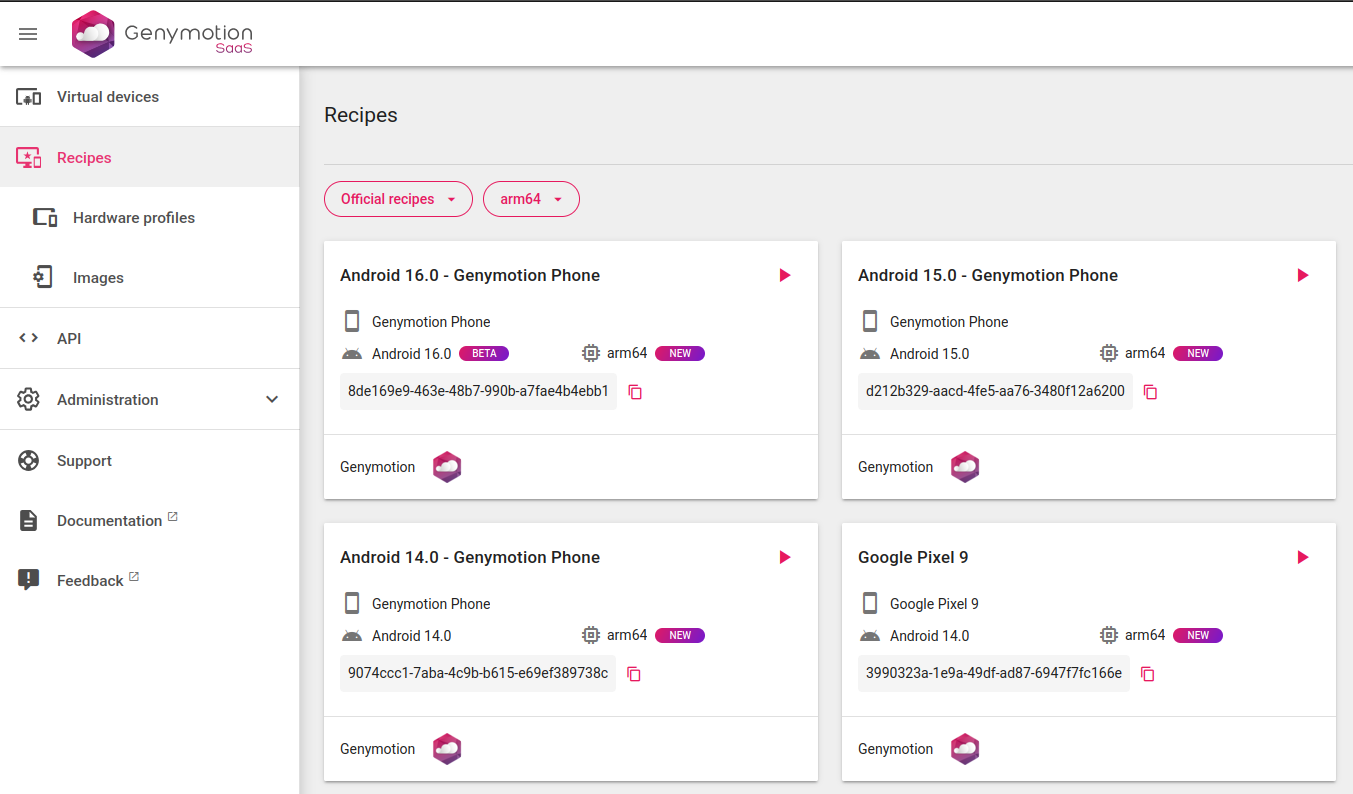
Then start an instance from this recipe and install the application as described previously.
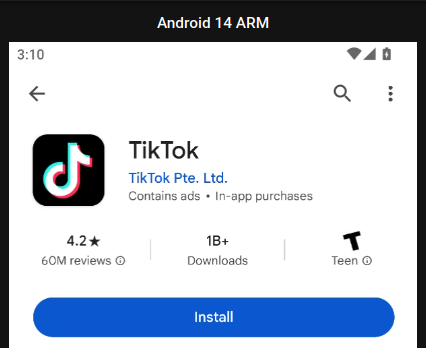
If you use Google Play Store, you will notice that arm-only apps, such as TikTok, are now available: