Connect to ADB
Prerequisites
- Python 3.8 or higher
- pip3 20.9 or higher
- ADB from an Android SDK (
platform-tools)
Step 1 - Create an API Token
An API token is necessary to authenticate gmsaas. If you haven't already generated an API Token, you will need to create a new one:
-
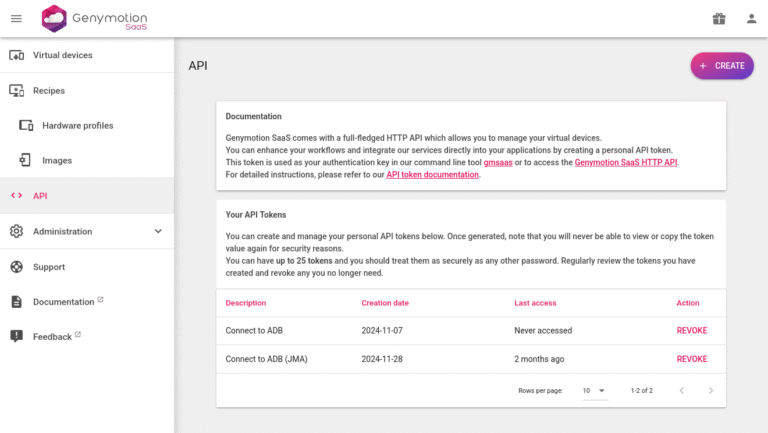
Navigate to the "API" section:
-
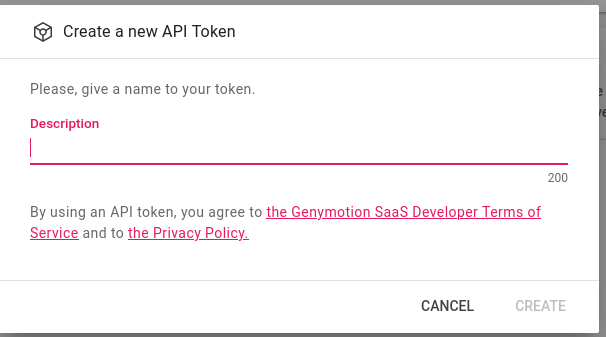
Click on the “Create” button. A popup will open:
-
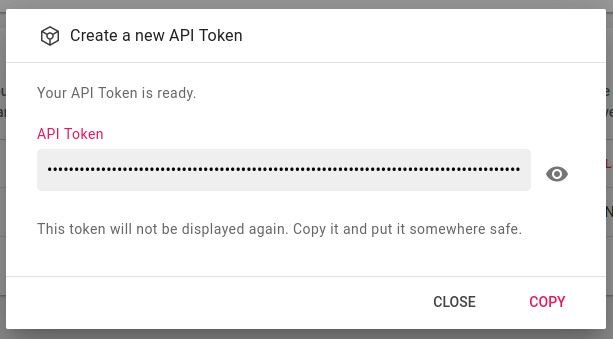
Give an explicit description to your token, such as “gmsaas token”, and click “CREATE”. A new token will be generated and displayed:
-
Click “COPY” to copy the token to your computer clipboard and save it somewhere.
Once a token has been created, it will not be possible to view or copy its value again! Make sure to save it somewhere safe before closing the popup.
When done, your new token will be displayed in the Your API Tokens section.
Step 2 – Install and configure gmsaas CLI
Before proceeding to this step, make sure that Python 3.8+ and pip3 20.9+ are installed on your workstation. Also, it is highly recommended to use a virtual Python environment; you can follow this tutorial for detailed instructions.
Install gmsaas
In a terminal or command shell, run this command:
pip3 install gmsaas
This will install gmsaas with all its dependencies. For more details about gmsaas installation, please refer to gmsaas user guide.
Authenticate
You need to authenticate gmsaas with the API token you generated in Step 1:
gmsaas auth token <token> # replace <token> with your API token.
Configure gmsaas
Next, you need to configure the path to your Android SDK, where ADB is stored:
gmsaas config set android-sdk-path <sdk_path>
Replace <sdk-path> with the path to your Android SDK installation directory, similar to the ANDROID_SDK_ROOT or the deprecated ANDROID_HOME environment variables.
gmsaas does not support relative paths, such as sdktools/ or ./sdktools
Verify
Check that gmsaas is properly setup with the gmsaas doctor command:
gmsaas doctor
Step 3 - Connect the device to ADB
Launch your device and copy its UUID:
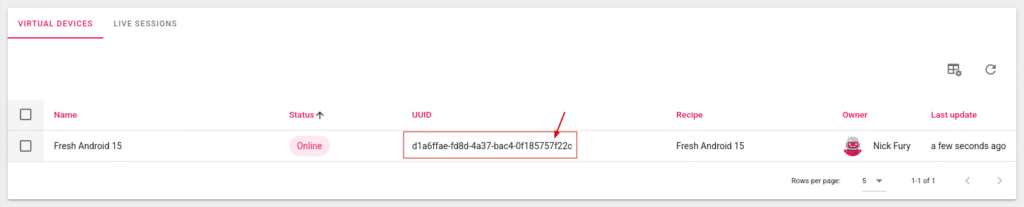
or use the gmsaas instances list command to get the UUID:
$ gmsaas instances list
UUID                                  NAME              ADB SERIAL    STATE
------------------------------------  ----------------  ------------  -------
a8d382f9-633f-437f-bbcd-8907678071d4  Android 16 - JMA  0.0.0.0       BOOTING
then run the gmsaas instances adbconnect command:
gmsaas instances adbconnect <instance_uuid> # replace <instance_uuid> with the UUID of the running device.
Example
For example, with an instance UUID d1a6ffae-fd8d-4a37-bac4-0f185757f22c:
gmsaas instances adbconnect d1a6ffae-fd8d-4a37-bac4-0f185757f22c
Your device should then be connected to adb. You can verify with the adb devices command:
$ adb devices
List of devices attached
localhost:44615 device
And that's it! Your can now pass adb commands to your virtual device!