Change authentication
If authentication is disabled, your instance will be accessible by anyone from its public IP. If you decide to do so, make sure that your security groups or firewall only allows access from authorized sources.
From the Web UI

It is possible to change the authentication credentials, or disable it altogether, from the instance web UI:
-
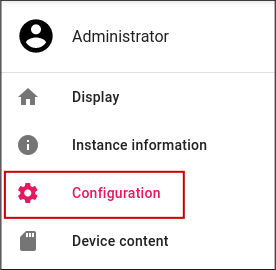
Go to the Configuration panel:
-
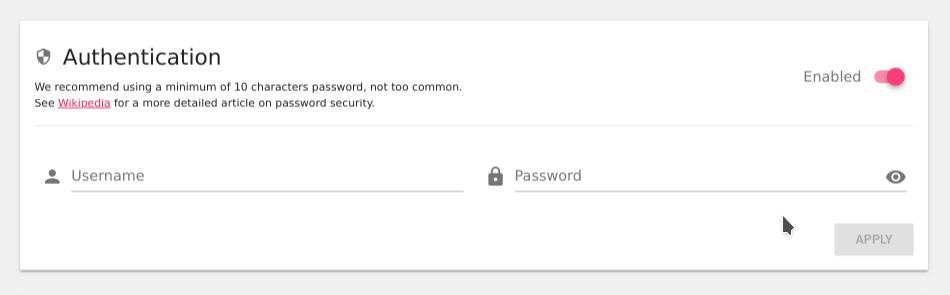
In the Authentication box, you can change username, password or even disable authentication if needed:
-
Click APPLY to apply
By Command line
Connect the instance to ADB or SSH, then use the following commands:
# Change username
adb shell "setprop persist.webrtcd.username \$(echo -n "new_username" | sha1sum | cut -d \" \" -f1)"
# Change password
adb shell "setprop persist.webrtcd.password \$(echo -n "new_password" | sha1sum | cut -d \" \" -f1)"
Or, to disable authentication:
adb shell "setprop persist.webrtcd.authent off"
Switch to root:
$ su
Then:
# Change username
setprop persist.webrtcd.username \$(echo -n "new_username" | sha1sum | cut -d \" \" -f1)
# Change password
setprop persist.webrtcd.password \$(echo -n "new_password" | sha1sum | cut -d \" \" -f1)
With a script
To automate the process, you can use a script like the following one:
#!/bin/bash
ssh -i key.pem shell@{instance_ip} 'su -c \
"setprop persist.webrtcd.username \$(echo -n "new_username" | sha1sum | cut -d \" \" -f1);\
setprop persist.webrtcd.password \$(echo -n "new_password" | sha1sum | cut -d \" \" -f1)"'
Or, to disable authentication:
setprop persist.webrtcd.authent off