License Guide
A license key can only be used by one person on one computer and a spare. Learn more
Genymotion Desktop automatically connects to your user account to check the validity of the license key. If you are off-line, you need to connect it to the Internet after 15 days. This ensures nobody else uses your license.
Registering a license
Once you have purchased a license, you will receive a license key which needs to be registered withing Genymotion Desktop.
If you have already used Genymotion before, and you are already logged in:
-
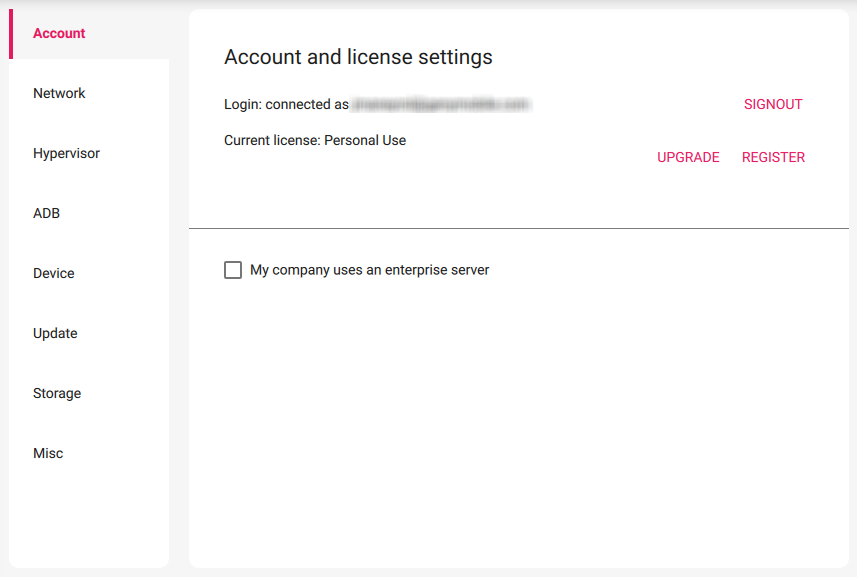
Go to Settings and navigate to the Account tab:
-
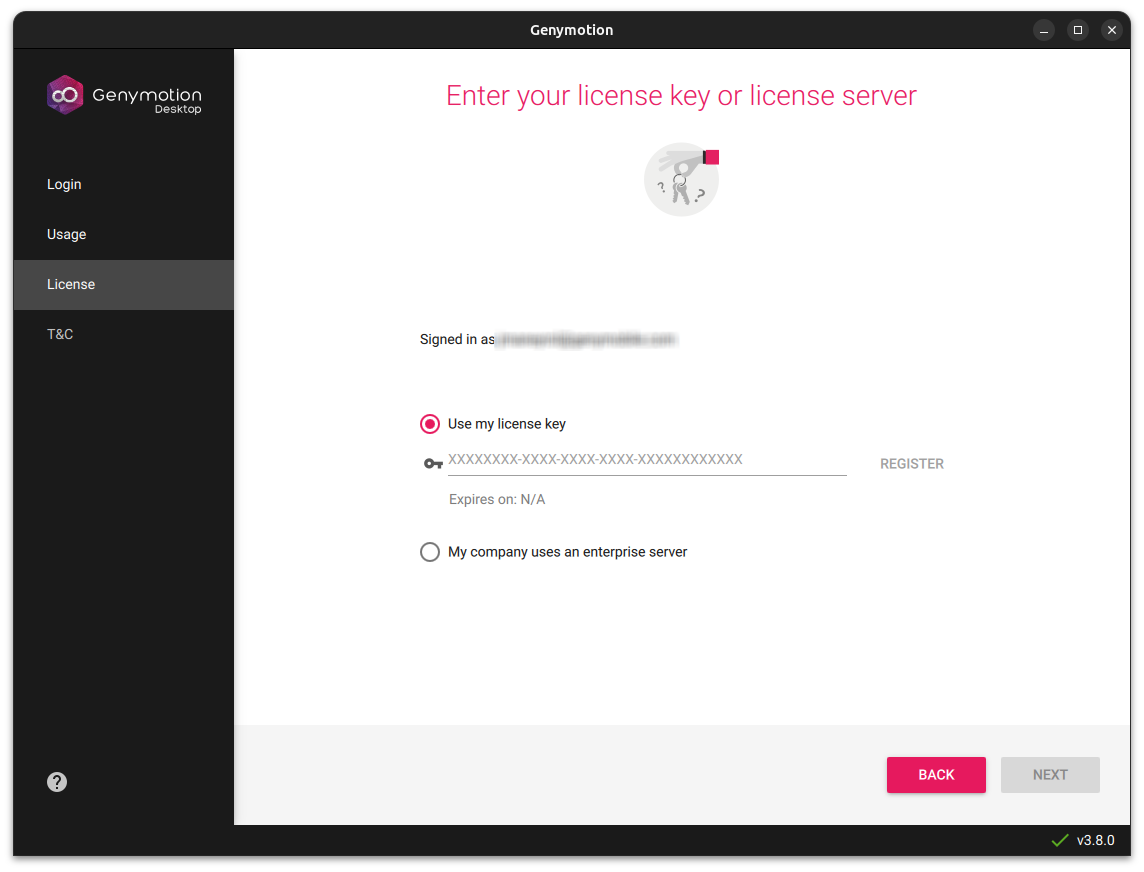
Click on REGISTER and paste your license key in the "Use my license key" field:
-
Click REGISTER. If successful, the details of the license are displayed.
- Click NEXT
If you are using Genymotion Desktop for the first time, and you have been provided with a license, you can also register it when signing in. See Quickstart - sign in
Managing licenses
Once your license(s) is validated, you can refer to your user settings on the Genymotion website to view its details at any time.
To manage your license(s):
- Sign in to https://www.genymotion.com/account
-
Go to the Orders tab:
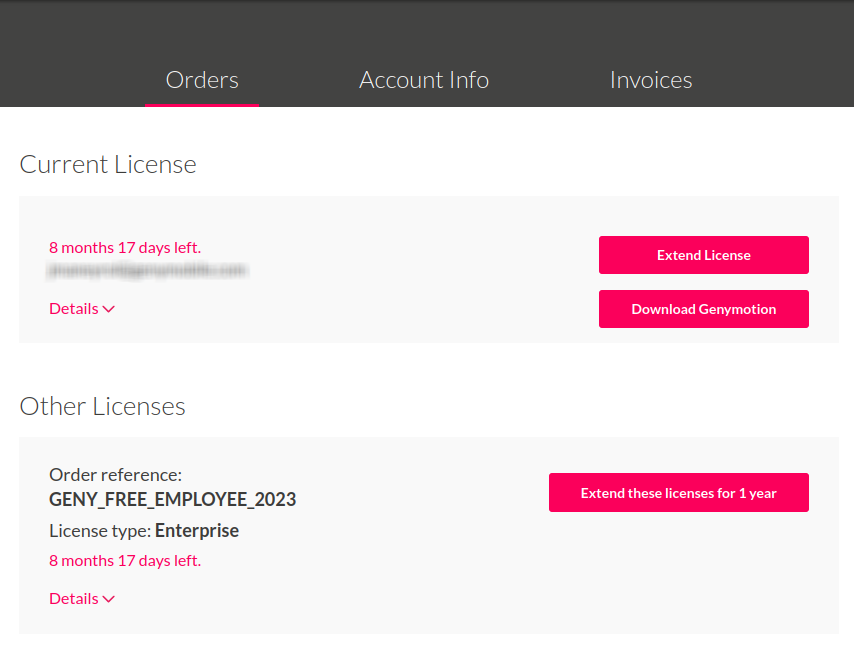
- Current License: The license key currently registered to your account, with its validity period. Click Download Genymotion to download Genymotion Desktop or Extend license to renew the license.
Not attributed means that the license has not been registered in Genymotion Desktop yet.
- Other Licenses: All the licenses already purchased with their validity period as well as their related user accounts and e-mails. You can renew all these licenses by clicking Extend licenses for 1 year.
To renew licenses and add some new ones at the same time, you must make two separate transactions.