Install Applications
This section describes how to install Android applications and learn about existing limitations.
From Google Play Store
We assume no liability whatsoever resulting from the download, install and use of Google Play Services within your virtual devices. DO IT AT YOUR OWN RISK!
Google Play Store and services are not installed by default for Intellectual Property reasons; you need to use the Open GApps widget to install them:
- Click , or and Install Open GApps.
- Read the Disclaimer carefully and click Accept if you agree with the terms. The Open GAPPs package will be automatically downloaded and flashed.
- Reboot the virtual device when prompted. The device will reboot and, meanwhile, you will be redirected to Open GAPPS website.
To launch Google Play Store, hold the left mouse button and slide up from the bottom of the device display. Then, click Google Play:
Then, open the Play Store, configure your Google account and install your application.
Your device isn't compatible with this version
If the application cannot be found, or Google Play Store displays the error message Your device isn't compatible with this version, please refer to the section Installation Failures for more information.
From an APK file
Drag and Drop
Drag and drop an APK file to the virtual device display to install it:
Sideload with ADB
You can sideload APKs with the adb install command:
adb install <application name>.apk
If you get an error, please refer to the section Installation Failure for more information.
Supported ABIs
Here is a summary of ABI compatibility on Genymotion Desktop which help you to compile your application for the right architecture:
| ABI | Mac M-series | PC (x86_64)/ Mac Intel (x86_64) |
|---|---|---|
| arm64-v8a | 🟢 | ❌ |
| armeabi-v7a | ❌ | 🔶 (Possible solution) |
| x86_64 | ❌ | 🟢 (Android 11 and above) |
| x86 | ❌ | 🟢 (Android 5.0 - 10) |
Genymotion Desktop has currently no official support for PC with ARM64, but we're working on it!
To ease the process, consider enabling Universal APK in your project.
Installation failures
There may be multiple reasons why an application or game fail to install and run.
Architecture Mismatch
The application or game you are trying to install is not available for the architecture of your virtual device: most modern apps, especially games, are only available for arm64 (arm64-v8a). See supported ABIs for available architectures.
Unsupported Feature
If the app or game you are trying to deploy requires a feature which is not emulated, such as NFC, it may fail to install or run.
In Google Play Store, this also causes the error Your device isn't compatible with this version.
Rooted image
Some apps and games detect root and will fail to install or run if you use a rooted image.
However, we offer several Android images which are not rooted: you may try installing your app or game with one of our non-rooted Android images. Please refer to Root Access for the list of available non-rooted Android images.
In Google Play Store, this also causes the error Your device isn't compatible with this version.
ARM (32-bit) applications on x86_64 computers
Genymotion Desktop images architecture is x86 or x86_64 on PC (x86_64) and old Mac (Intel). Therefore, only applications and games for x86 or x86_64 can be installed on these systems.
Apps and games for ARMv7 (32bit) or ARM64 cannot be deployed on these systems "out of the box". However, it is possible to deploy and run some apps and games compiled for ARM by flashing ARM translation tools.
ARM translation tools modify the Android image and may damage your virtual device permanently. USE AT YOUR OWN RISKS!
Warning
- ARM translation tools contain libraries that are the property of Intel; we cannot distribute them.
- The ARM translation tools must be flashed before the Open GAPPs package.
- ARM translation tools are not available for all Android versions.
First, flash the ARM translation tools:
- Drag'n drop the ARM translation tools .zip file to the device display.
- Once done, reboot the device or close and restart it.
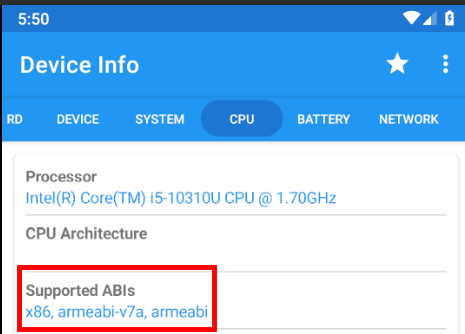
To verify the installation, you can use a third party application, such as Device Info. If successful, the available instruction sets (Supported ABIs) should be x86, armeabi-v7a, armeabi: