Cloud Virtual Devices

You can view and access your Genymotion SaaS Cloud instances from Genymotion launcher.
In the Devices section, navigate to the CLOUD tab:
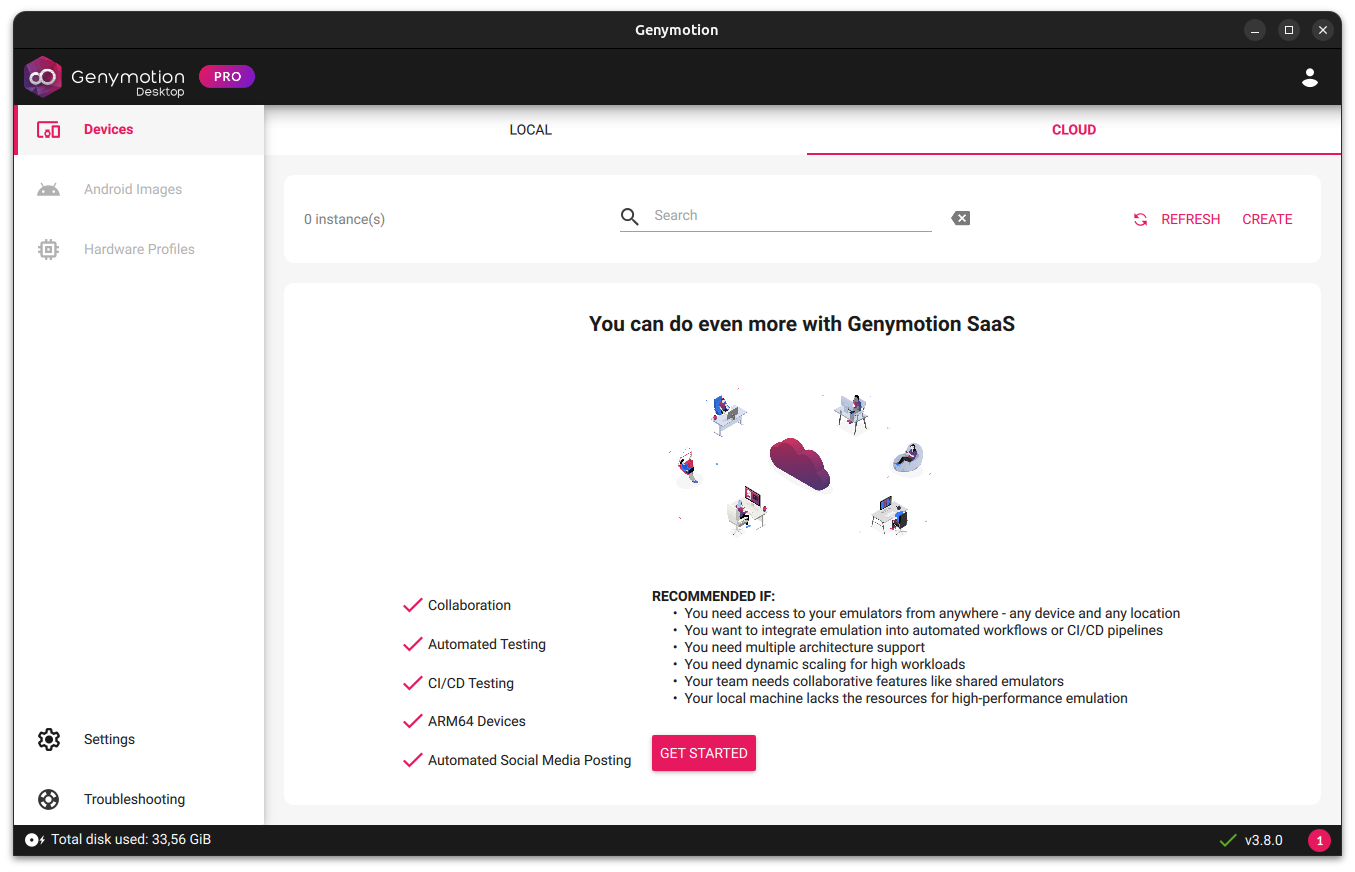
Click GET STARTED to connect Genymotion Desktop to a Genymotion SaaS Cloud account.
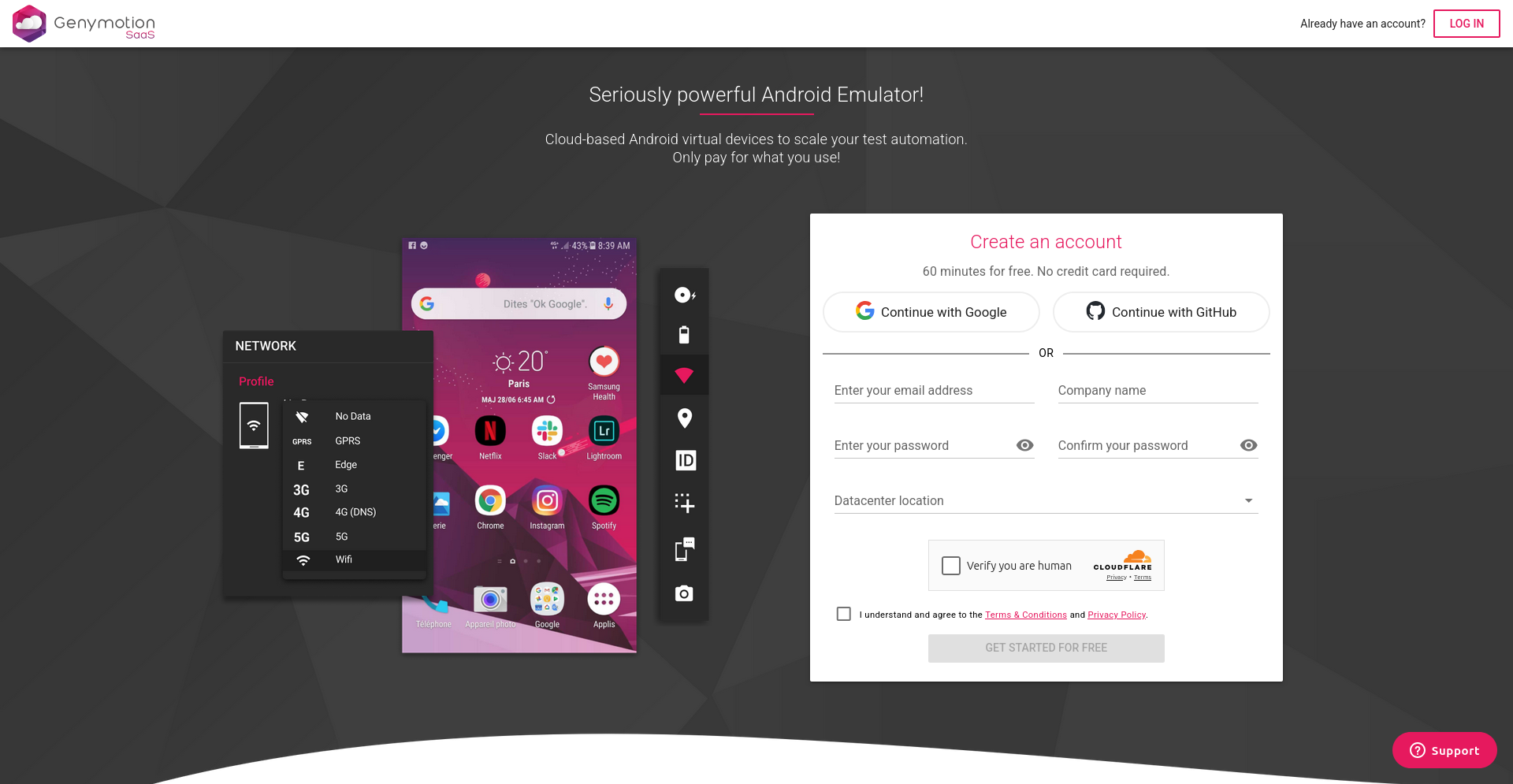
If you don't have a Genymotion SaaS account yet, you can sign up at this point:
If you already have a Genymotion SaaS account, you can click LOG IN in the upper-right corner on the page, and log in with your credentials or SSO:
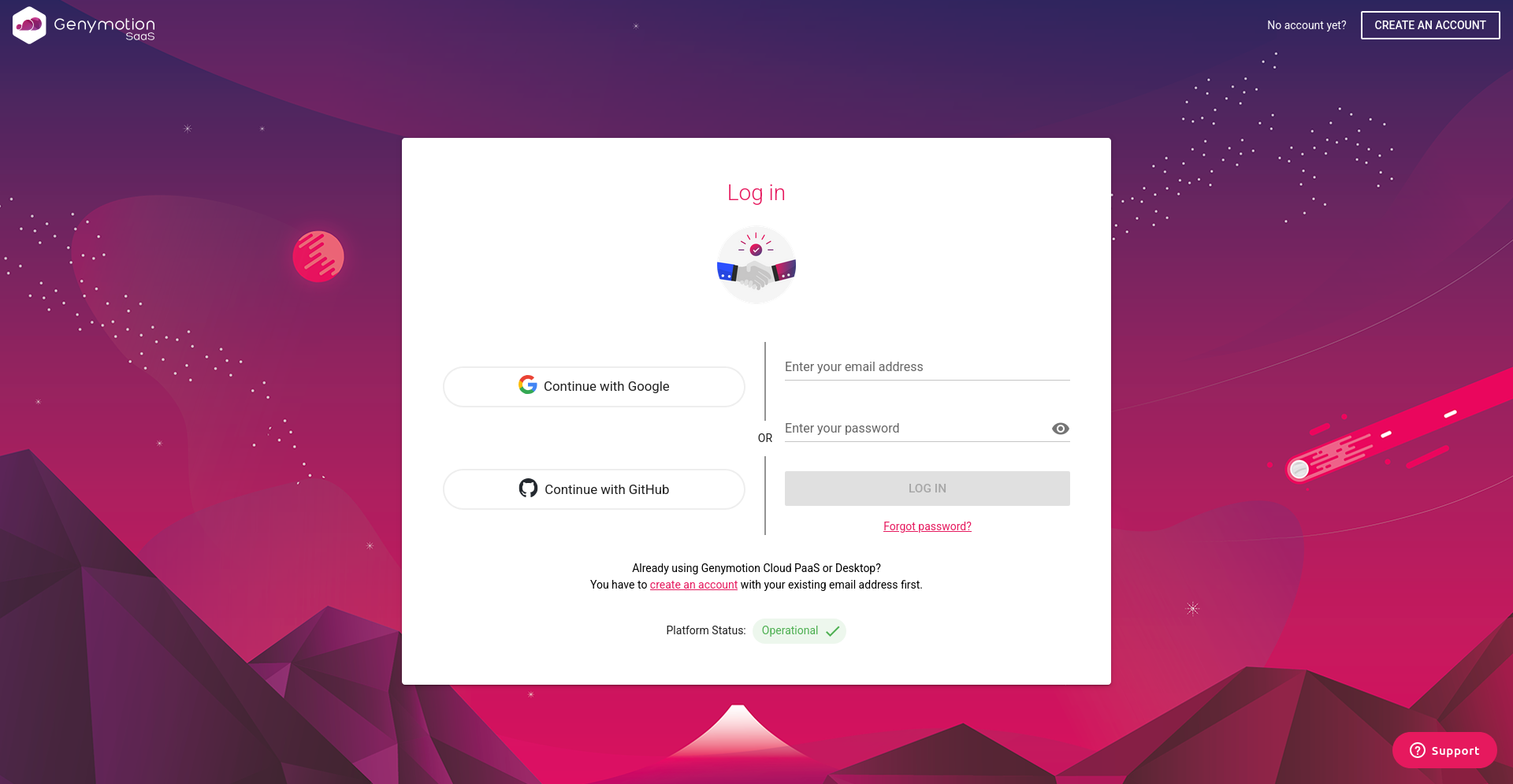
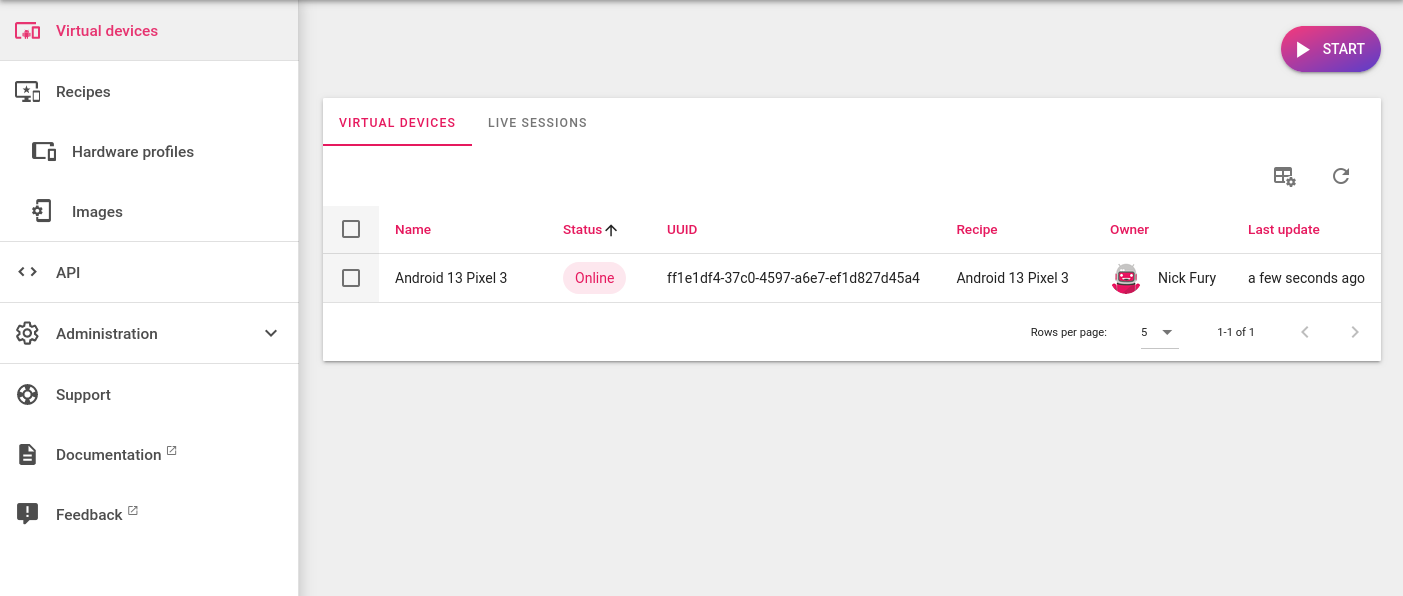
Once logged, you will be redirected to Genymotion SaaS Virtual Devices dashboard:
Create a New Cloud Instance
If you don't have any running instances, you can click CREATE in the upper-right corner of the window. This will redirect you to your Genymotion SaaS dashboard:
Then follow the instructions from Genymotion SaaS quickstart guide to create and start an instance.
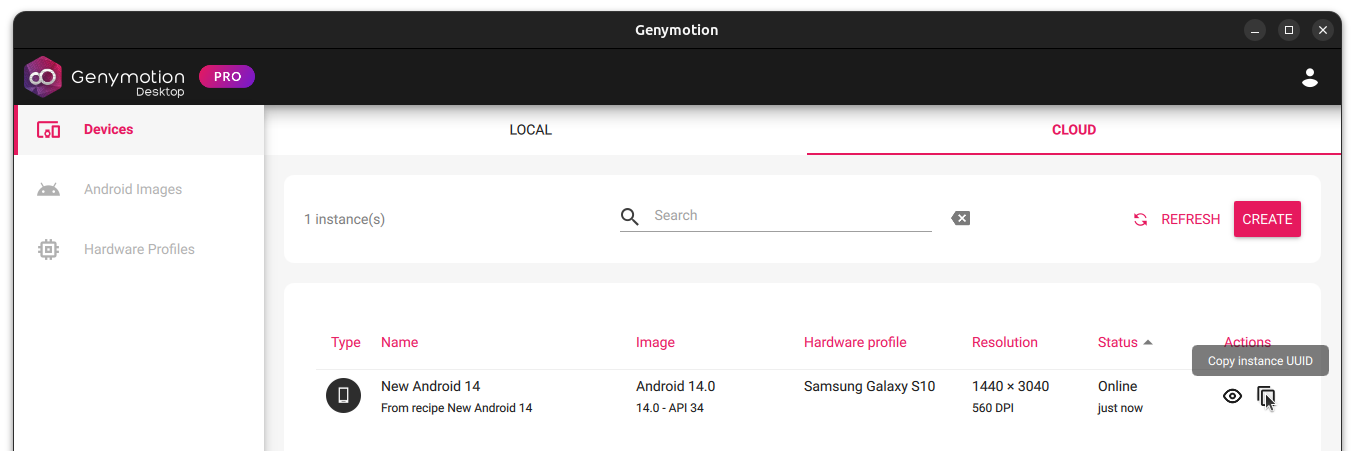
Once the instance is running, it will appear in Genymotion Desktop Cloud devices dashboard:
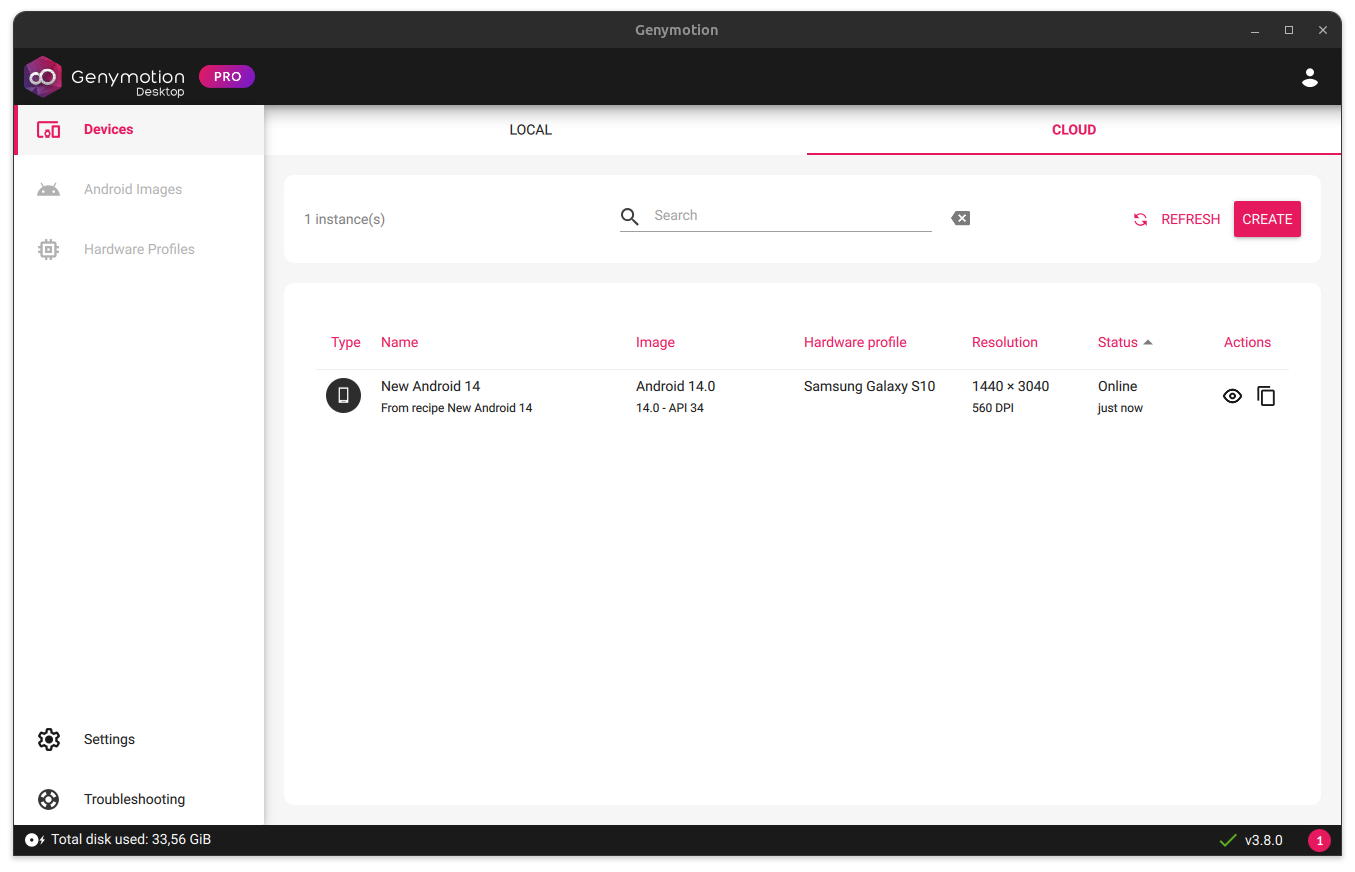
You may need to click REFRESH to see your running Cloud instances
Access a Cloud Instance Display
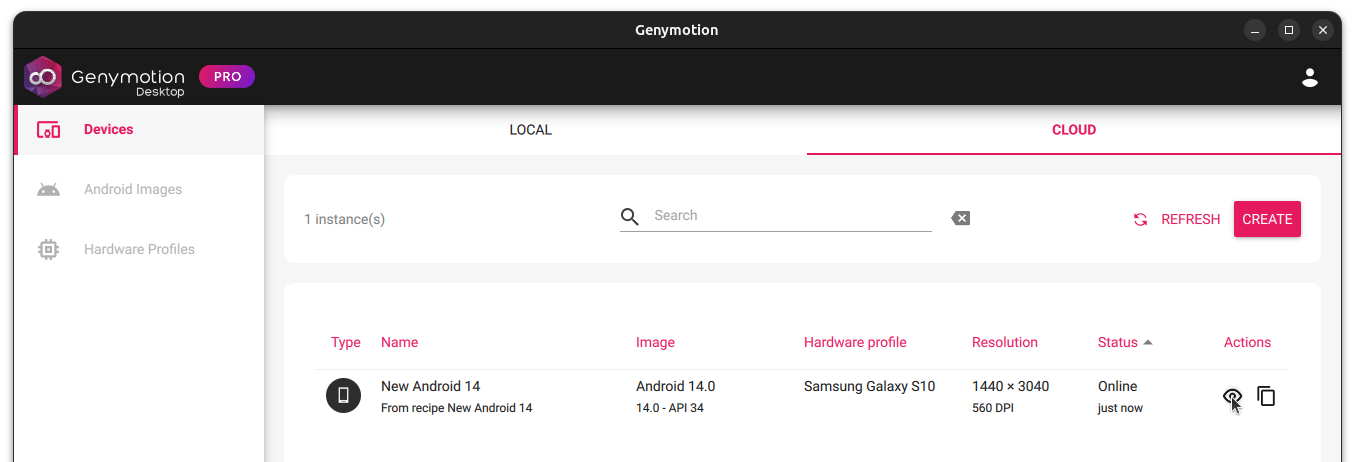
Once your instance has started, or if you already have running instances, click to open the cloud instance display in an external Web browser:
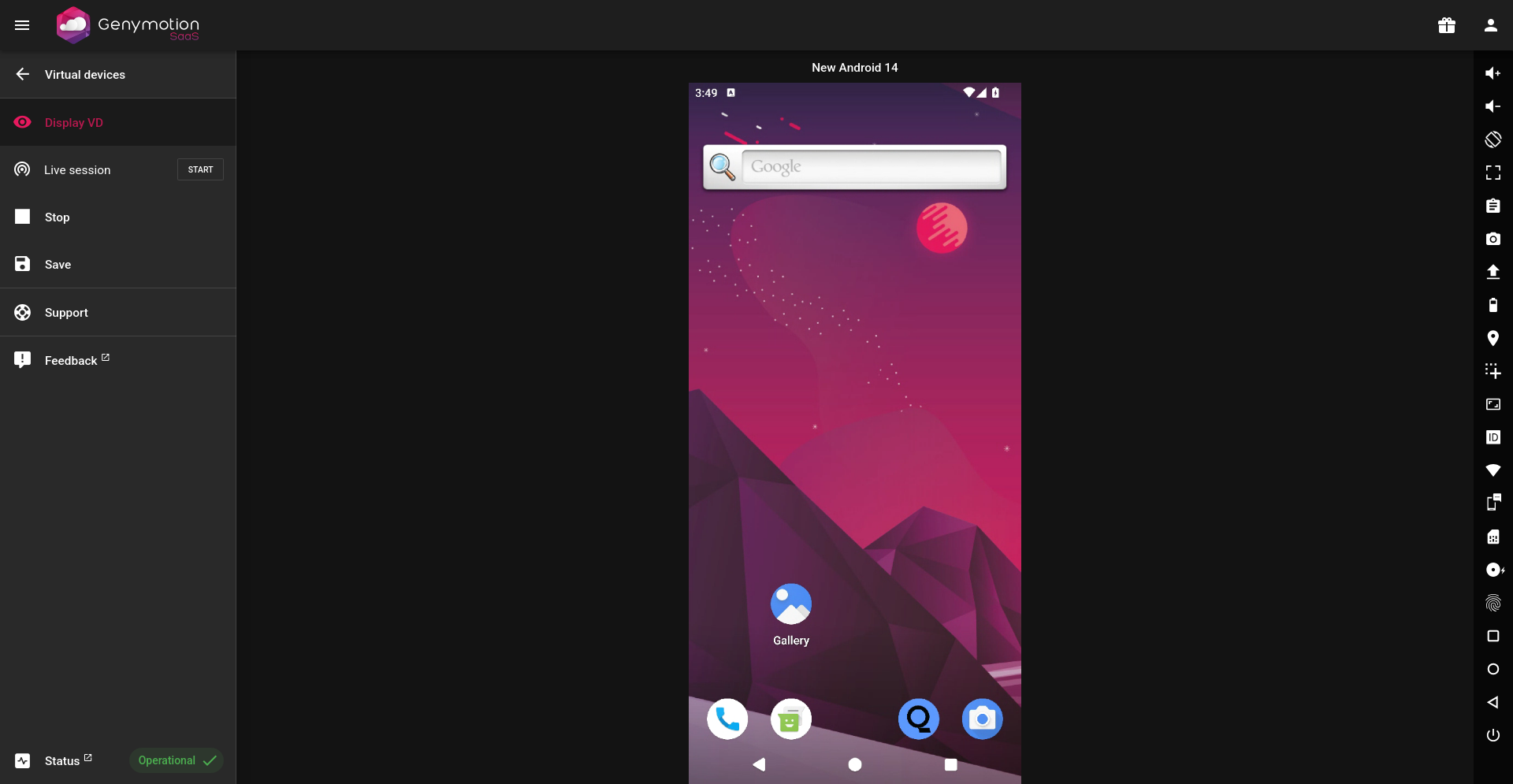
For detailed information on how to operate Genymotion SaaS instances, please refer to Genymotion SaaS quistart guide.
Copy the Instance UUID
An instance UUID is generally used to automate operations, or connect a Cloud instance to ADB, with gmsaas CLI tool.
Click in the Actions of the running instance of your choice to copy its UUID: