Settings

Click to open the settings widget:
This feature is not available with Genymotion SaaS at this time.
This feature is not available with Genymotion PaaS at this time.
Information
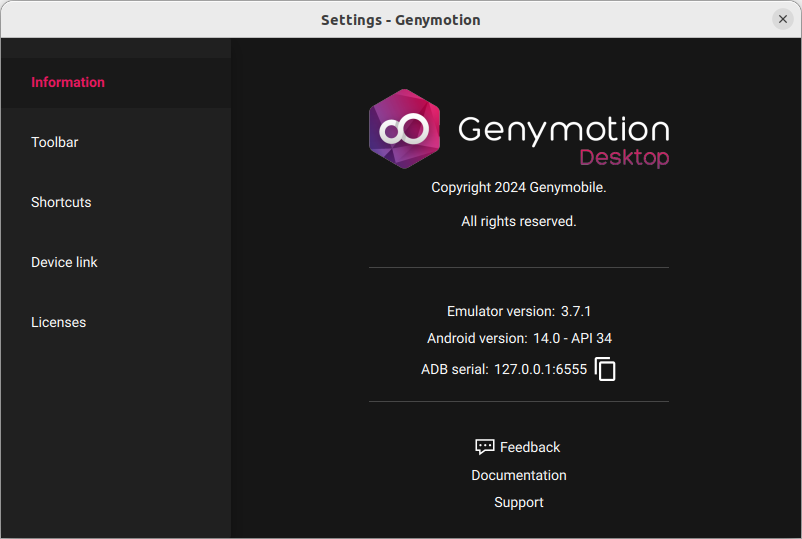
In this section, you can find information related to Genymotion and your virtual device:
- Emulator version: Genymotion version.
- Android version: the Android version of the virtual device.
- ADB serial: the ADB serial (local IP and port) of the virtual device.
Toolbar
You can click in the right-side toolbar to reach this feature.
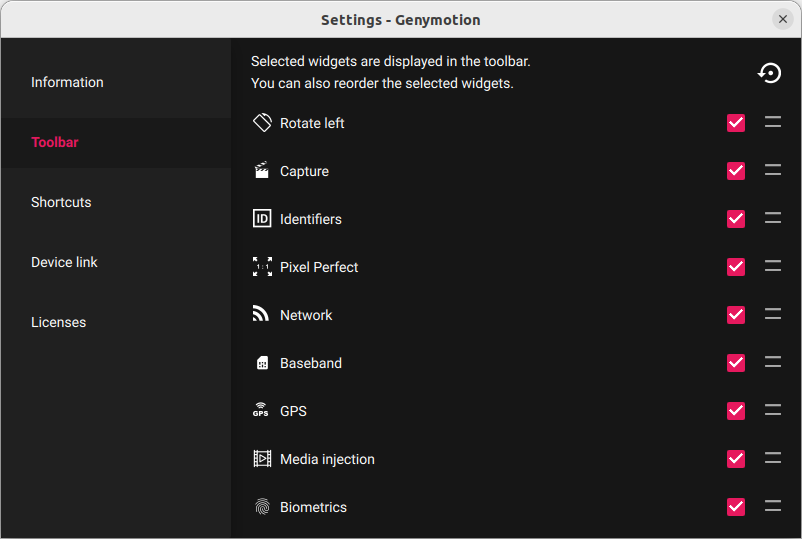
With this feature, you can:
- Select which widgets to display in the right-side toolbar by checking them.
- Drag'n drop the widgets to change their order in the right-side toolbar.
- Click to reset to default.
Shortcuts
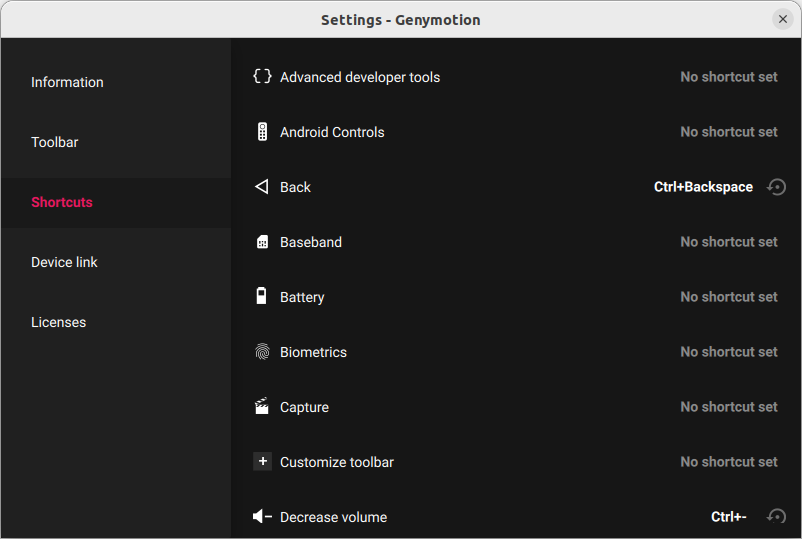
This feature allows you to change the default virtual device shortcuts and add custom shortcuts:
-
Click on a feature to create or edit a shorcut:
-
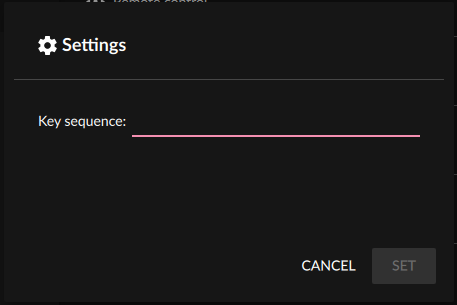
Press a key sequence (for example, Ctrl+A) and click SET to confirm.
Click to restore the default value.
Device link

With the Device Link feature, you can use a smartphone as an emulation companion for your development. It allows you to:
- Forward touch event from your smartphone to the emulator.
- Mirror emulator screen on your smartphone.
- Forward smartphone sensors to the emulator (precisely accelerometer, gyroscope and magnetometer) - see Motion sensors widget.
As a result, you can test your application as if you were holding a device in your hands.
To use Device Link, open the settings window:
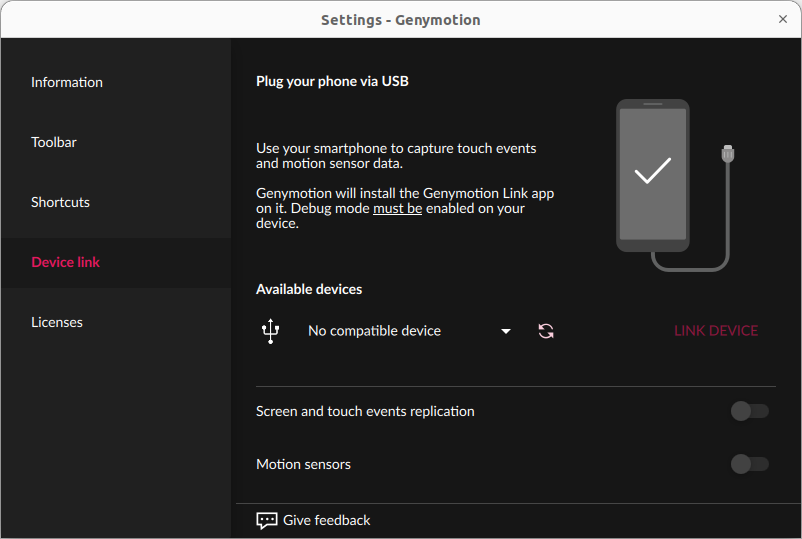
Connect your smartphone to your computer, ensure USB debugging is enabled. Please refer to this article for detailed instructions. You may also need to configure your system to enable ADB connection through USB. See Set up a device for development for detailed instructions.
You can also use ADB wirelessly.
Once your smartphone is ready and connected via USB to your host computer, click on to refresh the list, it will appear in the Available devices section:
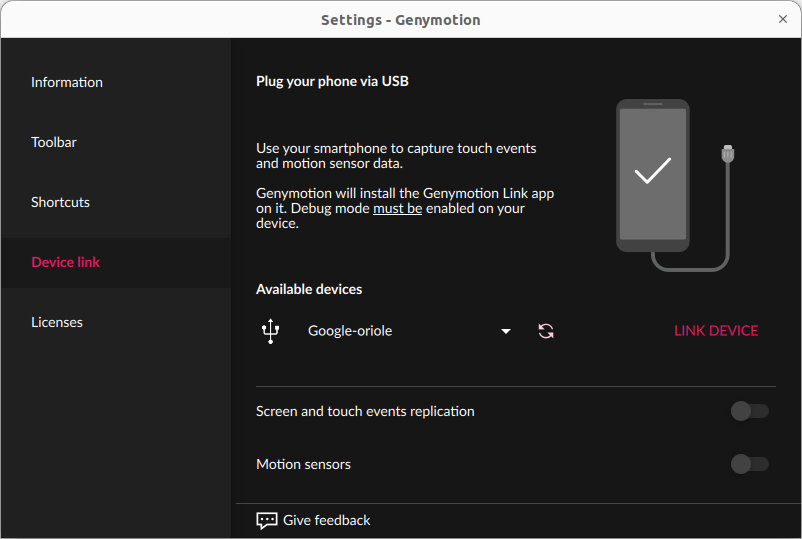
Click LINK DEVICE to proceed: this will install the Genymotion Link app on your device and automatically open it.
When completed, you should see your virtual device display on your physical device screen, and it should appear as "Device linked":
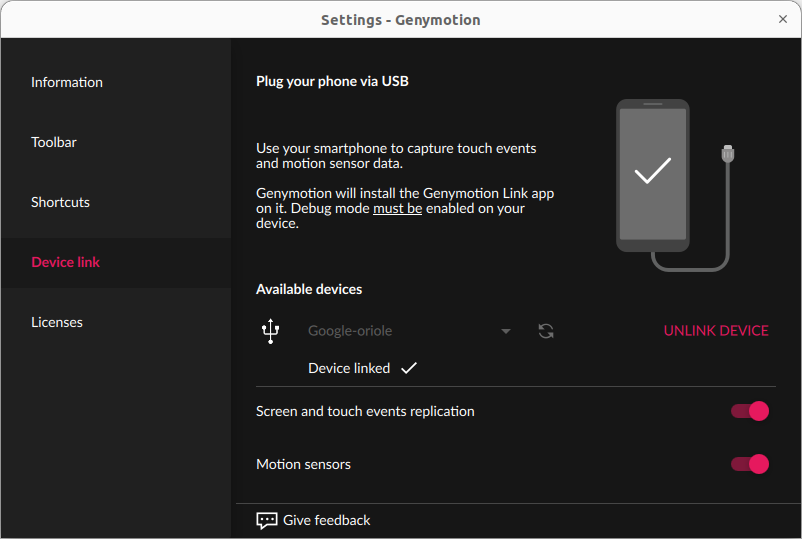
You can then use the toggle switches to:
- Disable or enable screen and touch events replication.
- Disable or enable motion sensors connection (cf. Motion sensors)
Licenses
Displays the licenses of Genymotion open-source components:
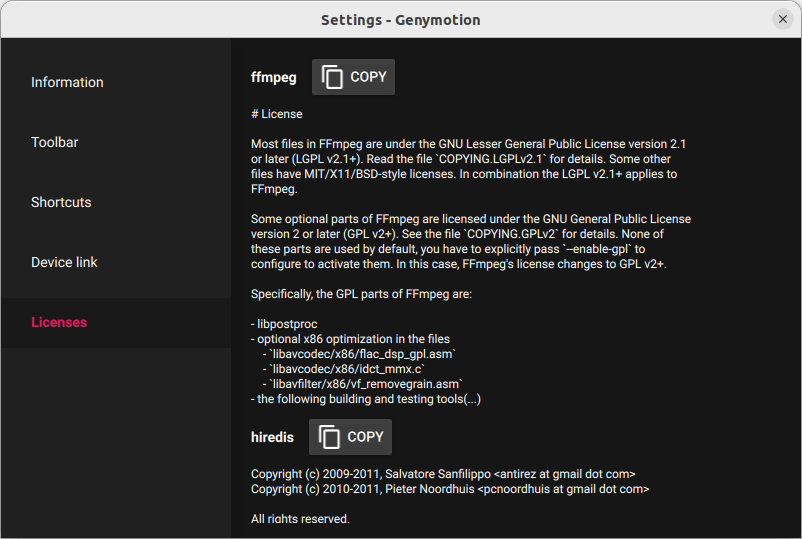
Click COPY to copy the full text of the license.