Motion Sensors


The Motion Sensors widget allows you to simulate Android motion sensors.
Click to open the widget window:
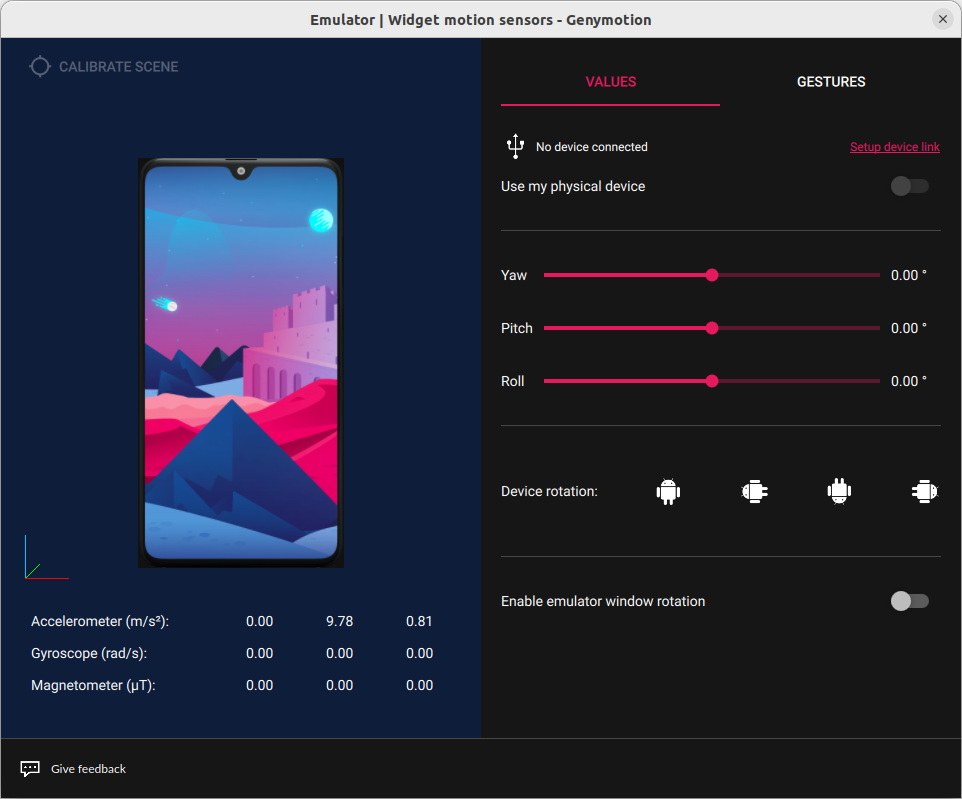
There you can simulate the device position in space by:
- using the sliders, in the right section of the window, to set specific Yaw, Pitch and Roll values from -180° to 180°.
- selecting a specific rotation angle in the Device rotation field.
- moving the device with your mouse in the left section of the window: left click and hold on the device 3d model, and move your mouse to rotate the device.
Android motion sensors, Accelerometer, Gyroscope and Magnetometer, values are displayed below the device 3d model.
You can also toggle Enable emulator window rotation if you wish to rotate the device display window in accordance with the motion sensors values you set.
The GESTURES feature is not available for now, but if you are interested in this feature, you can select this tab and vote for it.
This feature is not available with Genymotion SaaS at this time.
This feature is not available with Genymotion PaaS at this time.
With a linked physical device
It is also possible to connect an Android physical device. To do so, click on Setup device link and follow the instructions detailed in Device link feature.
Once linked, your device will appear as connected:
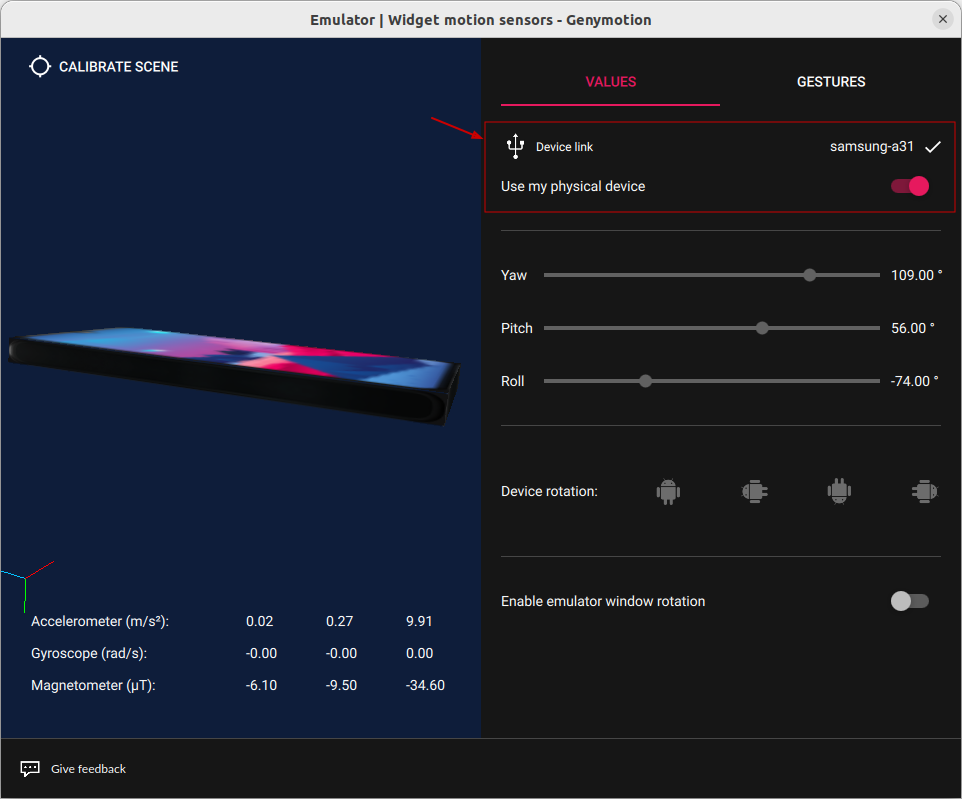
The sensors will display the values of your real physical device and the 3d model in space will be synchronized with your device motion sensors value.
Hold your smartphone vertically in front of you and click on CALIBRATE SCENE to synchronize the 3D with your smartphone position in space.
You can toggle this feature by using the toggle button next to Use my physical device.
By default, the emulator window will not rotate when the smartphone suggests so (for conveniency purpose). To enable rotation, the Enable emulator window rotation option must be enabled in the Motion sensor widget.