Google Play Store
The application you are developing or testing may require an interaction with Google Play Services (e.g.: in-app purchasing, advertising, etc.). However, for Intellectual Property reasons, Google Apps (Gmail, Drive, Calendar...) and Google Play services are not included in Genymotion virtual devices by default. You need to install the Open GApps package using Genymotion built-in feature.
We assume no liability whatsoever resulting from the download, install and use of Google Play Services within your virtual devices. USE AT YOUR OWN RISK!
Install the Open GApps package
- Click , or and Install Open GApps.
- Read the Disclaimer carefully and click Accept if you agree with the terms. The Open GAPPs package will be automatically downloaded and flashed.
- Reboot the virtual device when prompted. The device will reboot and, meanwhile, you will be redirected to Open GAPPS website.
- Access the virtual device display
-
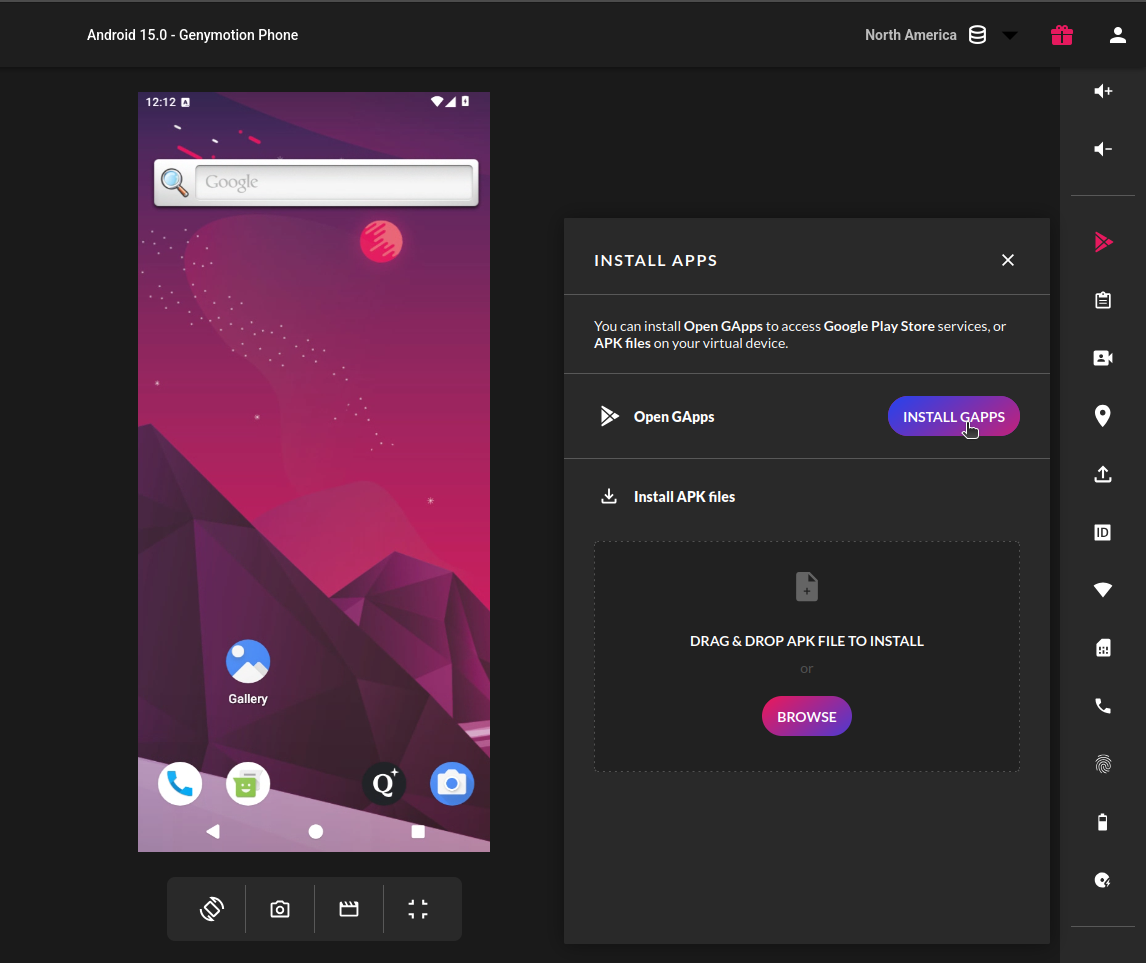
Click on in the right toolbar, and INSTALL GAPPS:
-
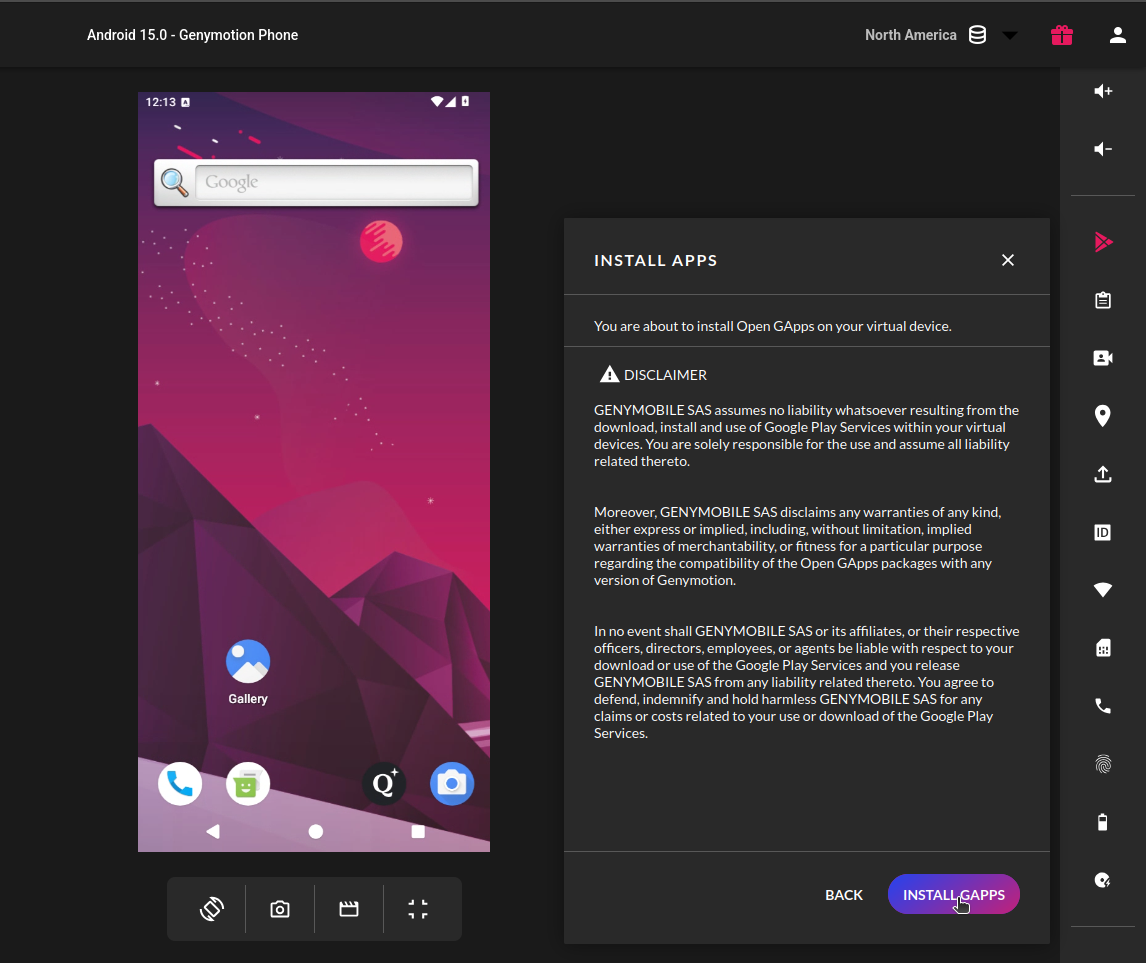
Read the disclaimer carefully and click INSTALL GAPPS again:
-
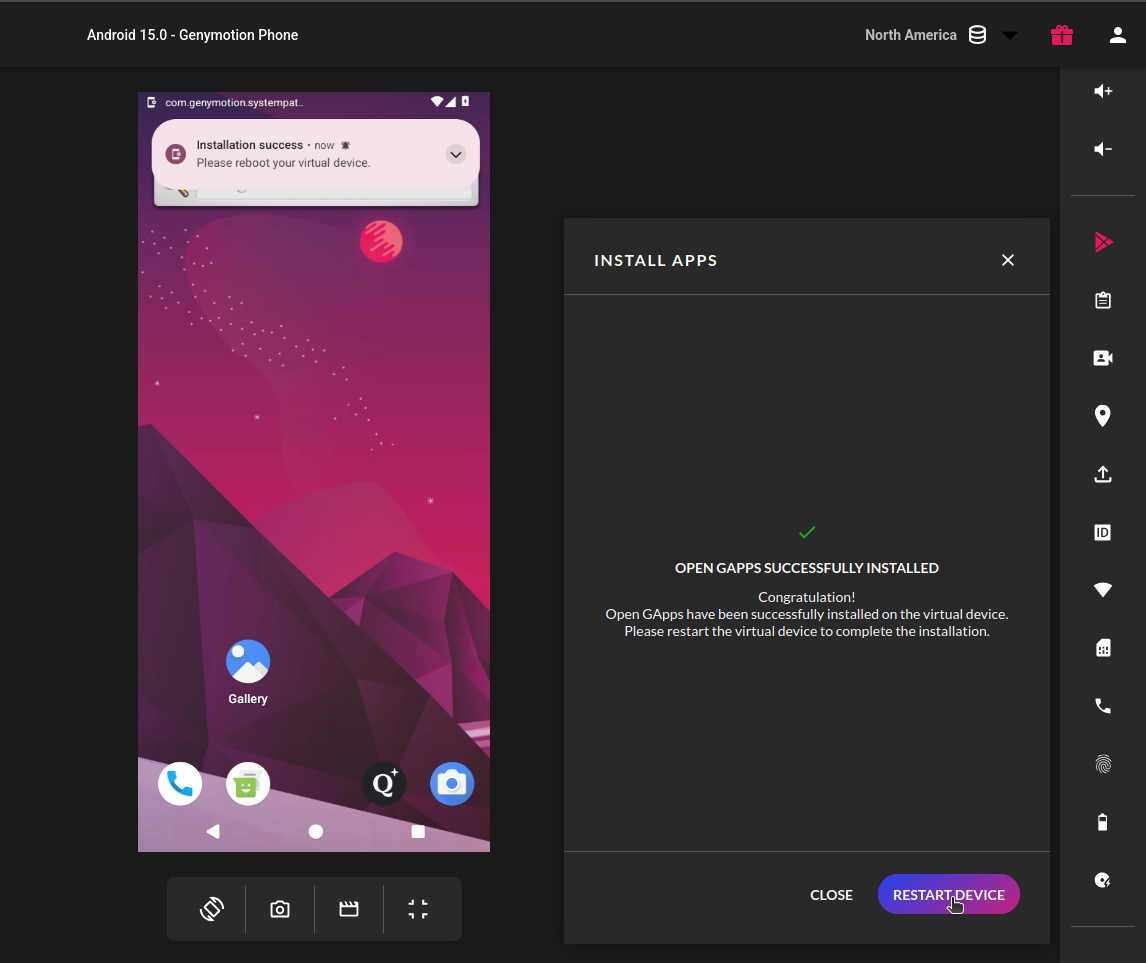
Wait for the package to upload and install. When done, you will be prompted to reboot the virtual device:
-
Reboot the device.
You can install the Open GApps from the Device Content section of the user interface, or from the File Upload widget:

-
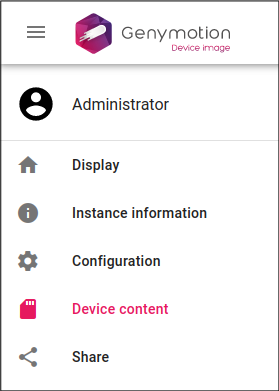
Go to the Device content panel:
-
In the Packages section, click
 next to the Open GApps package: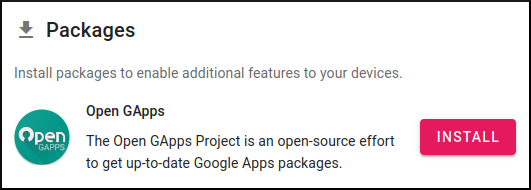
-
The Open Gapps package will be automatically downloaded and installed. Reboot the instance when prompted.

- From your device display, open the File upload widget
- Click INSTALL OPEN GAPPS
- Click INSTALL
- After the package is installed, reboot your instance.
After reboot, you may have to wait a couple of minutes for the Google Apps to update themselves before opening them. Then, Google Play Store will be installed and accessible from Android Apps dashboard.
Setup Google Play Store
To launch Google Play Store, hold the left mouse button and slide up from the bottom of the device display to access the Android Apps dashboard. Then, click Google Play:
Next, sign in with your Gmail account and you are ready to go!
If you cannot find an application in Google Play Store, or if you get the error Your device isn't compatible with this version, please refer to our FAQ.