GPS
Many applications do not rely on the GPS orientation, but use the device accelerometer or gyroscope to determine the bearing of the device, which are not yet supported.
The GPS widget allows real-time activation and modifications of a position, accuracy and bearing.
Single Position
Click to open the GPS widget window:
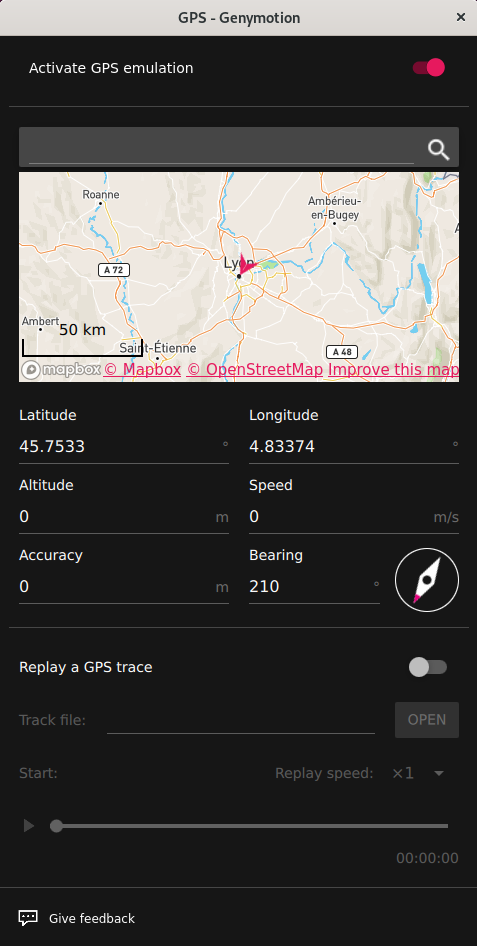
To set a single position:
- Toggle the Activate GPS emulation switch.
- Set the following values:
| Description | Value range | |
|---|---|---|
| Latitude | The latitude value you wish to simulate. | -90° to 90° |
| Longitude | The longitude value you wish to simulate. | -180° to 180° |
| Altitude | The altitude value you wish to simulate. | -10000m to 10000m |
| Speed | Set a speed in meters per second. | 0m/s to 99999.99m/s |
| Accuracy | Use the slider or enter a value to set the accuracy. | 0m to 200m |
| Bearing | Use the compass or enter a value to set the bearing. | 0° to 359.99° |
You can also define a location using the built-in map.
Many applications do not rely on the GPS orientation, but use the device accelerometer or gyroscope to determine the bearing of the device. This is not emulated yet, but you can use the device link feature to use a real device with accelerometer and/or gyroscope.
Click to open the GPS widget:
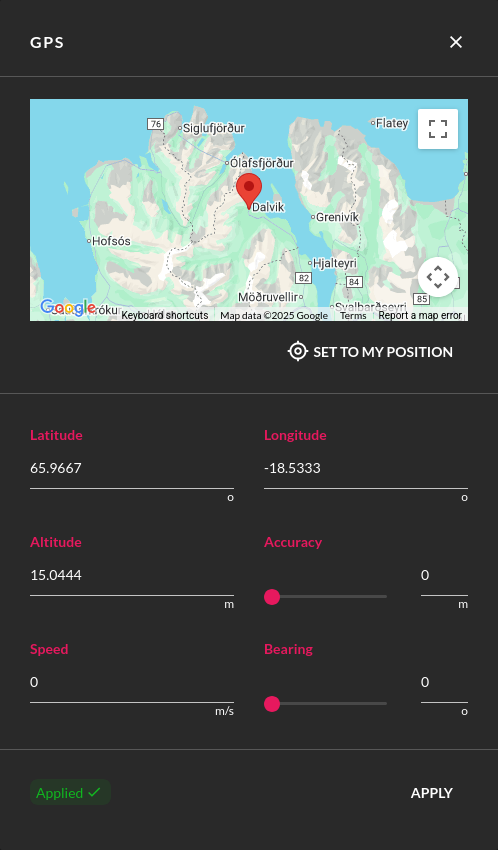
Set a value for each parameter:
| Value range | |
|---|---|
| Latitude | -90° to 90° |
| Longitude | -180° to 180° |
| Altitude | -10000m to 10000m |
| Accuracy | 0m to 200m |
| Bearing | 0° to 359.99° |
| Speed | 0 m/s to 399.99 m/s |
Many applications do not rely on GPS orientation, but use the device accelerometer or gyroscope to determine the device bearing instead. These features are not supported yet.
You can also:
- Click MAP to open the built-in map and select a location.
-
Click SET TO MY POSITION to get your current position (as returned by your browser).
You have to allow your browser to access your location.
Then, click APPLY to set the values.
To use the GPS widget, click :
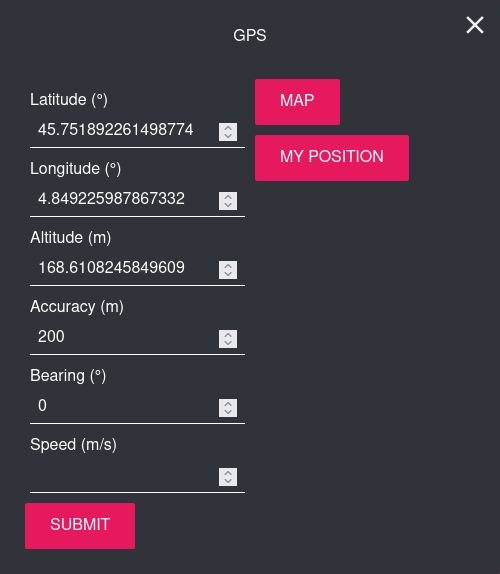
Then, set the following values:
| Value range | Note | |
|---|---|---|
| Latitude | -90° to 90° | |
| Longitude | -180° to 180° | |
| Altitude | -10000 m to 10000 m | |
| Accuracy | 0 m to 200 m | Use the slider or enter a value. |
| Bearing | 0° to 359.99° | Use the compass or enter a value. |
| Speed | 0 m/s to 399.99 m/s |
You can also:
- Click My Position to get your current position.
- Click Map to open the built-in map and set your location. Once done, click Capture to retrieve the coordinates.
Click Submit to apply the change.
Simulate Routes


You can simulate routes by uploading a track file.
Requirements and limitations:
- This feature only supports GPX and KML trace formats for now. More formats may be added in the future.
- GPX files must at least have one point with latitude and logitude data.
- If elevation is missing, it will default to 0.
- If timestamp is missing from a data point, it will default to the previous data point timestamp plus 1 second.
- If the data points are not in chronological order, they will be sorted before being played.
- If your trace file contains more than one track, only the first track will be played.
Here are examples of valid GPX and KML track files:
Example
<?xml version="1.0" encoding="utf-8"?><gpx xmlns="http://www.topografix.com/GPX/1/1" creator="Genymobile team" version="1.1">
    <trk>
        <trkseg>
          <trkpt lat="46.0536" lon="6.6700"><ele>1417.2867431640625</ele><time>2020-02-21T13:51:10Z</time></trkpt>
          <trkpt lat="46.0537" lon="6.6697"><ele>1417.2867431640625</ele><time>2020-02-21T13:51:12Z</time></trkpt>
          <trkpt lat="46.0537" lon="6.6695"><ele>1413.73291015625</ele><time>2020-02-21T13:51:14Z</time></trkpt>
          <trkpt lat="46.0537" lon="6.6694"><ele>1412.38671875</ele><time>2020-02-21T13:51:16Z</time></trkpt>
          <trkpt lat="46.0538" lon="6.6692"><ele>1410.734375</ele><time>2020-02-21T13:51:18Z</time></trkpt>
        </trkseg>
    </trk>
</gpx>
<?xml version="1.0" encoding="UTF-8"?>
<kml xmlns="http://www.opengis.net/kml/2.2"
xmlns:gx="http://www.google.com/kml/ext/2.2">
<Folder>
  <Placemark>
    <gx:Track>
      <when>2010-05-28T02:02:09Z</when>
      <when>2010-05-28T02:02:35Z</when>
      <gx:coord>-122.207881 37.371915 156.000000</gx:coord>
      <gx:coord>-122.205712 37.373288 152.000000</gx:coord>
    </gx:Track>
  </Placemark>
</Folder>
</kml>
Usage:
- Generate a GPX or KML track file with your favourite application, such as GoogleEarth.
- If it is not already enabled, toggle Activate GPS emulation on.
-
Toggle the Replay a GPS trace feature on:
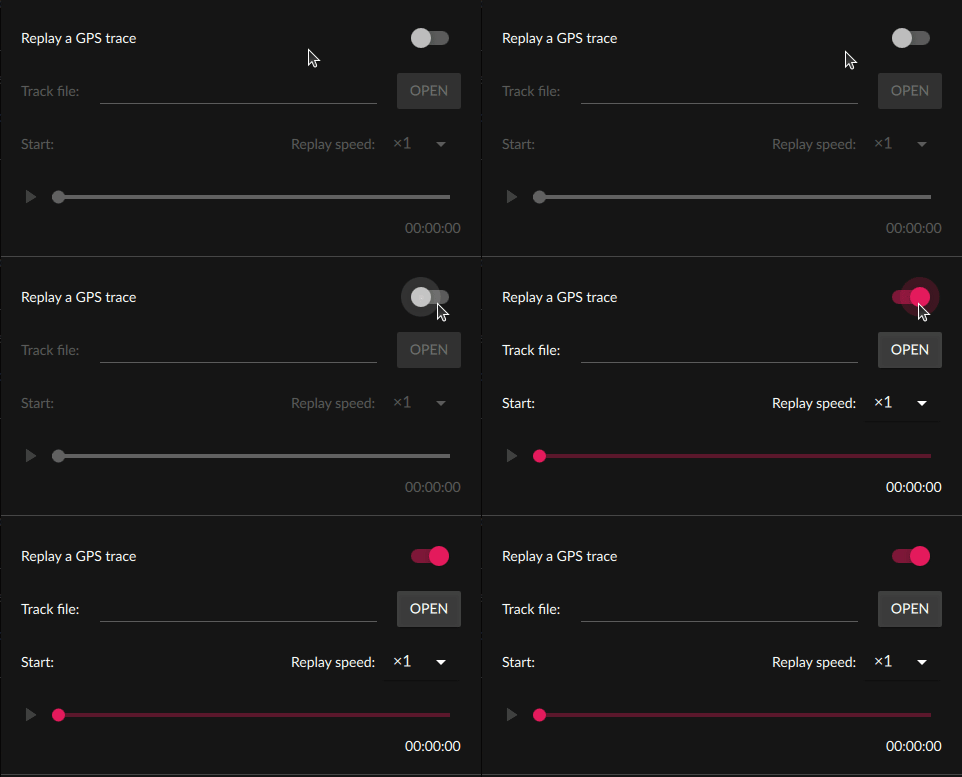
-
Click Open to upload your trace file.
-
Click to start or pause the route simulation:
-
Change play speed by selecting a replay speed in the drop-down menu.
This feature is not available with Genymotion SaaS at this time.
This feature is not available with Genymotion PaaS at this time.