Gamepad
To enjoy an immersive gaming experience with Android games or to test how your app interacts with a gamepad, you can use a gamepad connected to your computer on Android 12.0 and higher.


Click to open the Gamepad widget:
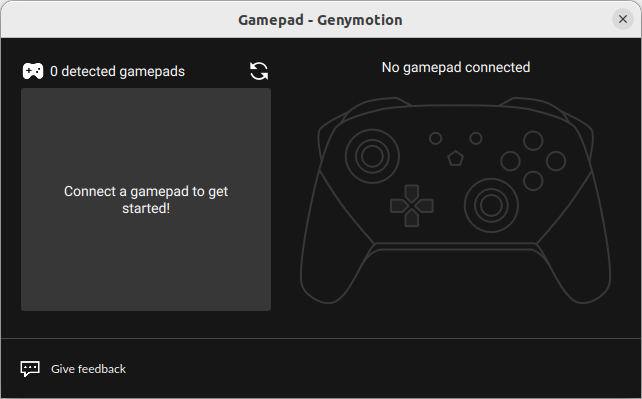
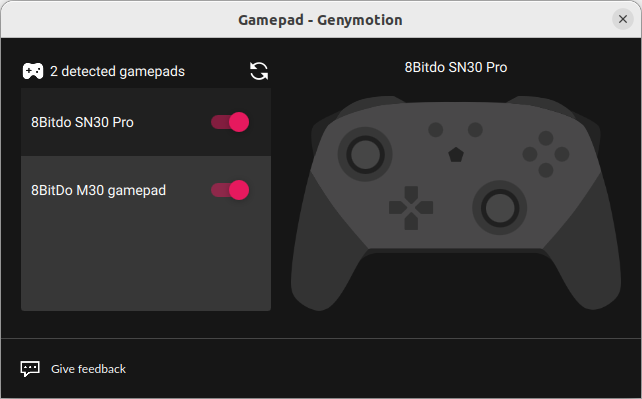
If one or more Gamepads are detected, their name will appear in the device box on the left:
Note
If no Gamepad appears when connected, try clicking to refresh. If it still does not appear, it may not be compatible with Genymotion, see compatible summary below:
| Gamepad | Windows | macOS | Linux |
|---|---|---|---|
| XBox 360 | 🟢 | 🟢 | 🟢 |
| PS5 | 🔶 (see "PS5 Gamepad on Windows") | 🟢 | 🟢 |
| Generic USB | 🟢 | 🟢 | 🟢 |
Then you can:
- Use the switch to toggle each Gamepad input on or off in the virtual device.
- Select which Gamepad to preview, if more than one is connected.
This feature is not available with Genymotion SaaS at this time.
This feature is not available with Genymotion PaaS at this time.
PS5 Gamepad on Windows
The PS5 DualSense gamepad is not yet recognized by Genymotion on Windows. However, several tools are available online that can make it appear as an Xbox 360 gamepad. These tools work well with Genymotion.