Clipboard
Copy/Paste to the virtual device
There is no "Clipboard" widget with Genymotion Desktop, since it supports host clibpoard sharing. Also, note that clipboard sharing can be disabled in the global settings.
Press Ctrl+C / Cmd+C to copy content from your computer, and Ctrl+V / Cmd+V to paste it in the virtual device.
-
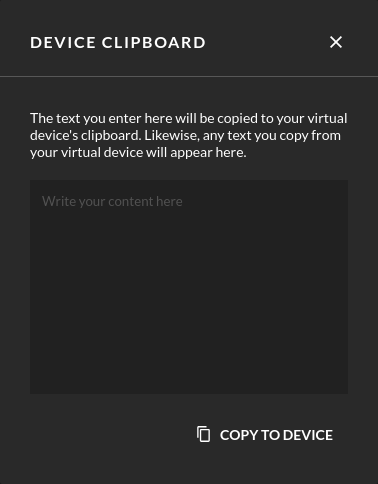
Click to open the clipboard widget:
-
Paste your text into the clipboard text field.
- Click COPY TO DEVICE
-
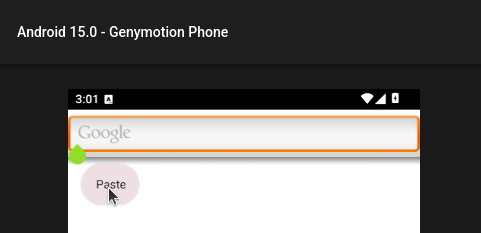
On the device display, hold the mouse left button and select Paste as on a real Android device:
- Click
- Paste your text into the clipboard text field.
- From within the virtual device, hold the left mouse button in the field you wish to paste to.
- Click Paste as on a real Android device.
Copy/Paste from the virtual device
Press Ctrl+C / Cmd+C to copy content in the virtual device, and Ctrl+V / Cmd+V to paste it to your computer.
-
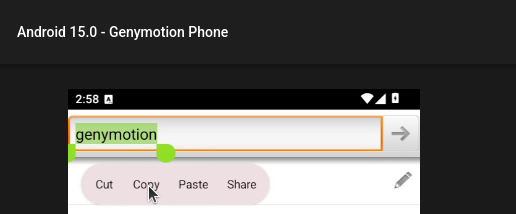
On the device display, select the text you wish to copy, hold the left mouse button and select Copy:
-
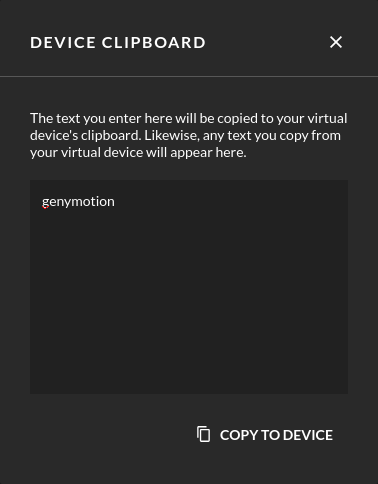
Click , the copied text is displayed in the clipboard text window:
-
Copy the content of the clipboard widget to your computer clipboard.
- From within the virtual device, select the text you wish to copy and hold the left mouse button.
- Click Copy or Cut as on a real Android device.
- Click - the copied text is displayed in the clipboard text window.
- The text is automatically copied to your OS clipboard.