Biometrics
This feature is only available for Android 13 and higher for the moment.
The Biometrics widget allows you to simulate fingerprint recognition.



Click to open the widget window:
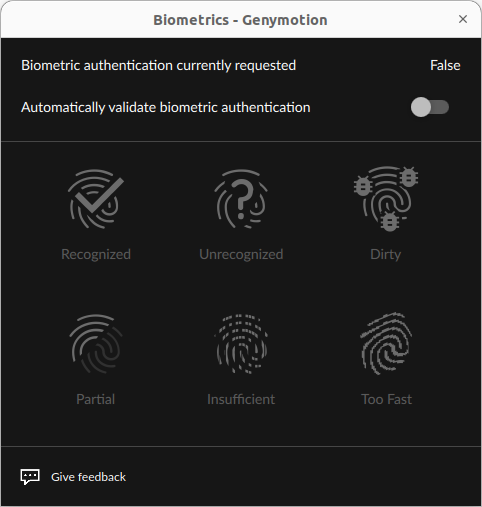
The icons will only become available when fingerprint enrollment starts in Android. At this moment, Biometric authentication currently requested will turn to True:
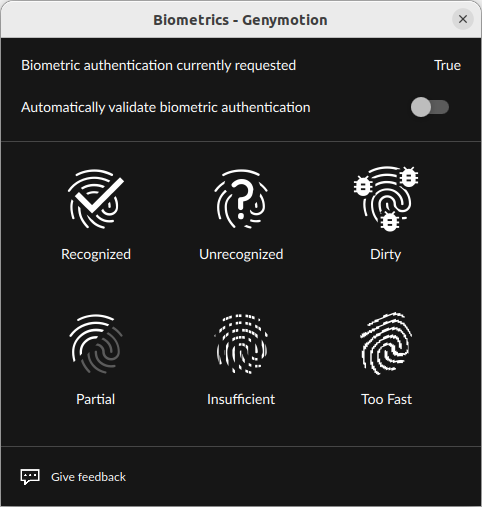
Then, you will be able to click on one of the icons to simulate the following scenarios:
- Recognized: the fingerprint is matched and recognized.
- Unrecognized: the fingerprint is not matched nor recognized.
- Dirty: the fingerprint is dirty.
- Partial: only part of the fingerprint is matched.
- Insufficient: the fingerprint quality is not good enough to be recognized.
- Too fast: the fingerprint capture has been made too fast to be recognized.
You can also toggle Automatically validate biometric authentication to automatically respond to a fingerprint enrollment with the Recognized scenario.
Warning
In order to use this widget in any application asking for Fingerprint authentication, you need to configure one fingerprint in Android.
Follow these step, in Android:
- Go to "Settings".
- Then "Security".
- Then "Fingerprint".
- Then click on "Add fingerprint" and use the Biometric widget to configure one finger.
Here is a quick video showing the whole procedure:
Click to open the widget window:
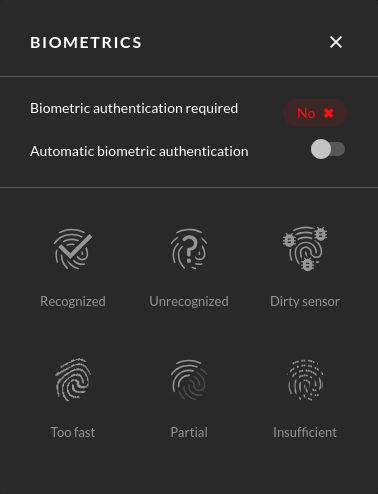
The icons will only become available when fingerprint enrollment starts in Android. At this moment, Biometric authentication required will turn to Yes:
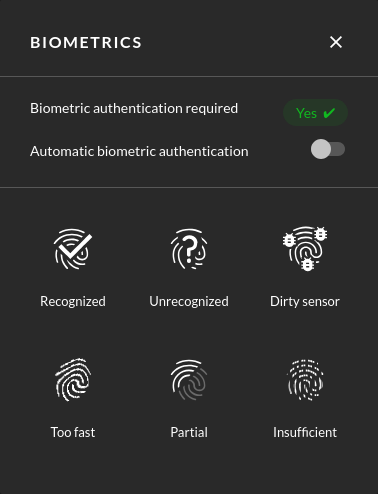
Then, you will be able to click on one of the icons to simulate the following scenarios:
- Recognized: the fingerprint is matched and recognized.
- Unrecognized: the fingerprint is not matched nor recognized.
- Dirty: the fingerprint is dirty.
- Partial: only part of the fingerprint is matched.
- Insufficient: the fingerprint quality is not good enough to be recognized.
- Too fast: the fingerprint capture has been made too fast to be recognized.
You can also toggle Automatic biometric authentication to automatically respond to a fingerprint enrollment with the Recognized scenario.
Warning
In order to use this widget in any application asking for Fingerprint authentication, you need to configure one fingerprint in Android.
Follow these step, in Android:
- Go to "Settings".
- Then "Security".
- Then "Fingerprint".
- Then click on "Add fingerprint" and use the Biometric widget to configure one finger.
This feature is not available with Android Automotive.

Click to open the widget window:
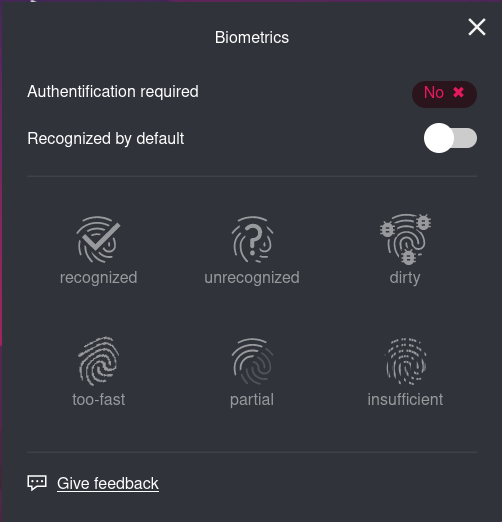
The icons will only become available when fingerprint enrollment starts in Android. At this moment, Authentication required will turn to Yes:
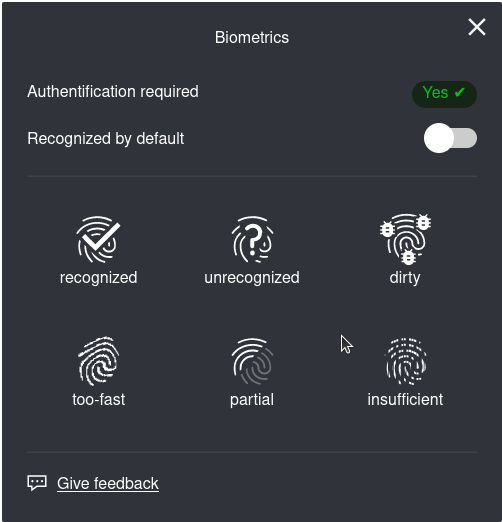
Then, you will be able to click on one of the icons to simulate the following scenarios:
- recognized: the fingerprint is matched and recognized.
- unrecognized: the fingerprint is not matched nor recognized.
- dirty: the fingerprint is dirty.
- partial: only part of the fingerprint is matched.
- insufficient: the fingerprint quality is not good enough to be recognized.
- too fast: the fingerprint capture has been made too fast to be recognized.
You can also toggle Recognized by default to automatically respond to a fingerprint enrollment with the recognized scenario.
Important Note
In order to use this widget in any application asking for Fingerprint authentication, you need to configure one fingerprint in Android.
Follow these step, in Android:
- Go to "Settings".
- Then "Security & privacy".
- Then "Device unlock" and "Fingerprint"
- Select a screen lock method
- Enter your Pattern, PIN or Password and click NEXT
- Confirm and proceed to the setup
- Use the Biometric widget to configure one finger