Basic Controls
In Genymotion Desktop the widgets visibility in the right tool bar will vary depending on the virtual device display window size and your screen resolution. To display all the available widgets, click on top of the tool bar.
Sound Volume
You can control the volume of the sound emitted by your virtual device by clicking or
Rotate Screen

Click to rotate the screen 90° to the left, or click to rotate the screen 90° to the right.
You can rotate the screen of your virtual device by clicking
This feature is not available with Android Automotive
You can rotate the screen of your virtual device by clicking
Full screen
There are no widgets to set the device display to fullscreen: you need to set full-screen in the "DISPLAY" section of the device settings or use the Ctrl+Shift+F keyboard shortcut.
You can turn the full-screen mode on or off by clicking
You can turn the full-screen mode on or off by clicking
Pixel Perfect
With Pixel Perfect, you can be highly precise in the development of your user interface and ensure every pixel of your application really looks as it should. One pixel of the virtual device is displayed using one pixel of your computer screen.
Click to enable or disable Pixel Perfect.
If the virtual device screen size is larger than your computer screen size, the virtual device window will be maximized and you will be able to use scrollbars to move inside the screen.
This feature is not available with Genymotion SaaS.
This feature is not available with Genymotion PaaS.
Battery
The Battery widget allows you to test how your application reacts with different battery charge levels and states of charge.
Click to open the widget:
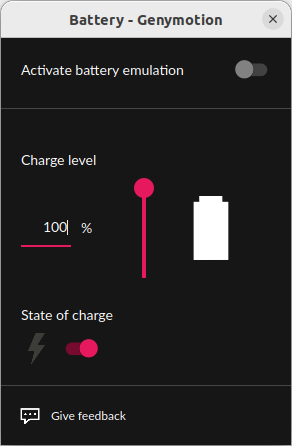
Then, you can:
- edit the charge level using the slider, or enter a value in the Charge level input field
- toggle the state of charge with the State of charge switch
The Battery widget allows you to test how your application reacts with different battery charge levels and states of charge.
To use the Battery widget, click :
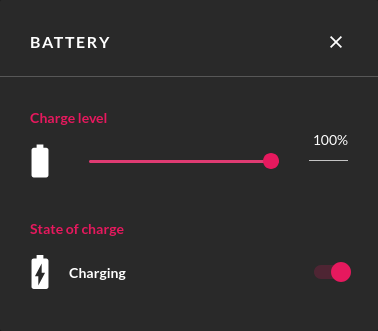
Then, you can:
- Modify the charge level using the slider or entering a value in the Charge level section.
- Toggle the State of charge.
This feature is not available with Android Automotive
The Battery widget allows you to test how your application reacts with different battery charge levels and states of charge.
To use the Battery widget, click :
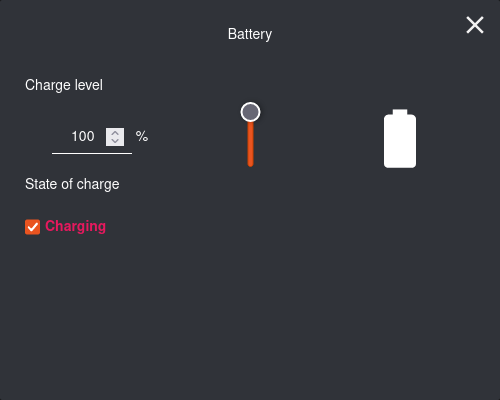
You can:
- Modify the charge level using the slider or enter a value in the Charge level field.
- Toggle the State of charge: check to simulate Charging state, or uncheck to simulate Discharging state.
Navigation
The navigation widgets emulate Android navigation buttons:
| Button | Effect |
|---|---|
| Kill the current activity and resumes the previous one. | |
| Navigate to Android Home page. | |
| List recently accessed activities and tasks. |
Power
The power widget simulates a real device power button:
- Click to put the virtual device to sleep.
- Click and hold your mouse button to simulate a power button hold (reset/power off).
Genymotion SaaS/PaaS
The power button will not shutdown your instance on Genymotion SaaS and Genymotion PaaS! Make sure to use the user interface to power off an instance correctly, or it may keep running and cause extra costs.